 Flippd Help
How do I invite my team or accountant to my Flippd account?
You can share one Flippd account with the people who help run your business — a partner who lists items, an employee who records sales, or your accountant who just needs to see the numbers. Everyone works in the same inventory, expenses, and reports. An account holds up to 5 people, including you.
Roles
- Owner — you. Full control, including inviting and removing people. There is exactly one owner, and the owner can never be removed.
- Member — full access to work in the account: inventory, sales, expenses, mileage, and reports. Members can't manage the people on the account, the subscription, or marketplace connections — those stay with the owner.
- Viewer — can see everything, including reports and exports, but can't change anything. Perfect for your accountant at tax time.
Inviting Someone
Inviting requires an active Flippd subscription (the people you invite don't need one).
- Open Settings and tap Users in the Account section — this opens the Members screen
- Tap the + button
- Choose their role — Member or Viewer
- Enter their email address
- Tap Create invite link
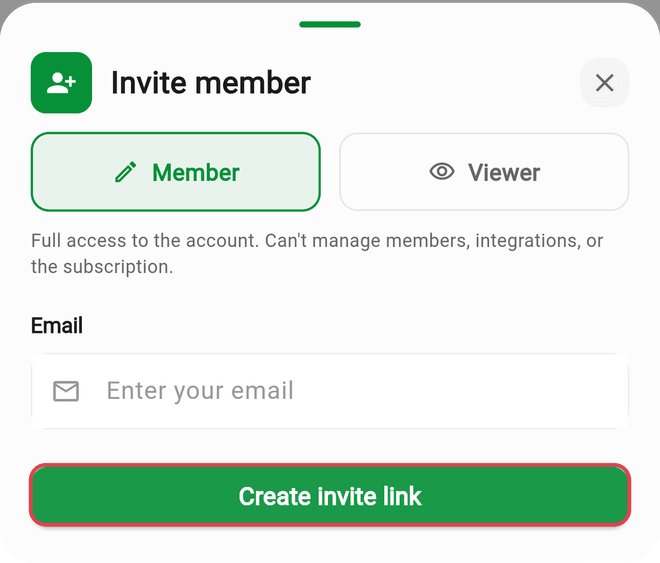
Flippd emails the invitation for you, and you also get the link to share yourself — text it, paste it in a chat, whatever works. Each link works once and expires in 7 days.
Managing Pending Invites
Tap any pending invite on the Members screen to:
- Share or copy the invite link again
- Resend the invitation email (wait a minute between resends)
- Revoke the invite so the link stops working
Accepting an Invitation
The person you invited just opens the link:
- They sign in — or create a free Flippd account with any sign-in method (Apple, Google, or email)
- They see who invited them and the role they're getting
- They tap Join account
They don't need to sign up with the exact email address you invited — the link itself is the invitation.
Changing Someone's Role
The owner can change a person's role at any time: on the Members screen, tap their name, then Change to Member or Change to Viewer.
Switching Between Accounts
People who join your account keep their own account too. Joining switches them into your account right away, and a banner on their Home screen always shows which account they're working in. Tapping Current Account in Settings (or that banner) moves between accounts anytime — your account's data and their own stay completely separate.
Removing Someone or Leaving
- The owner can remove a member or viewer from the Members screen — tap their name, then Remove
- Members and viewers can leave themselves from the same screen
- Everything they added stays with the account — items, sales, and expenses belong to the account, not the person
Good to Know
- Only the owner's subscription matters for the shared account — members and viewers work under it at no extra cost
- Members and viewers see Managed by the account owner on the Subscription screen — only the owner can view or change the plan
- Anyone removed (or who leaves) simply goes back to their own account; nothing is deleted
- You can have up to 10 invitations pending at once
- For running two separate businesses with separate data, see the multiple accounts article instead — inviting is for sharing one account