 Flippd Help
How do I compare fees across platforms with the Profit Calculator?
To compare fees across platforms, go to Tools > Profit calculator, open the Compare Fees tab, and enter a sale price. Flippd lists every enabled platform with its fee, what you keep, and your margin, sorted lowest fee first.
Step-by-Step
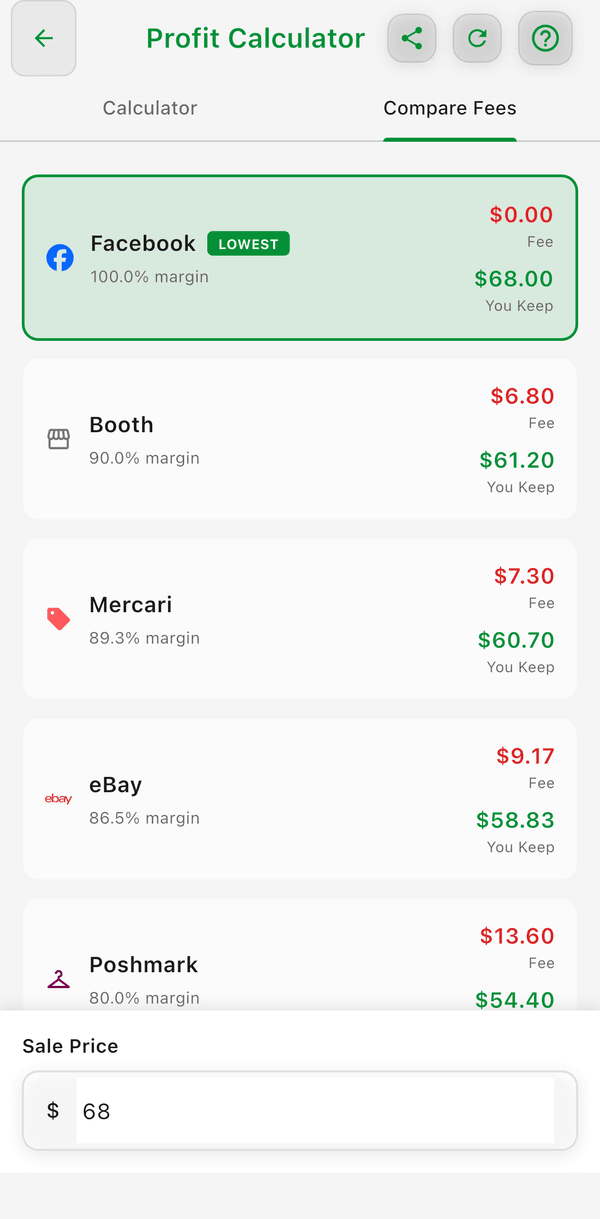
- Go to Tools > Profit calculator
- Tap the Compare Fees tab
- Enter your expected sale price
- See one row per platform showing:
- Fee -- What that platform would charge on the sale
- You Keep -- The sale price minus fees
- Margin -- The percentage of the sale price you keep
- The cheapest platform is marked with a LOWEST badge
How It's Different from the Calculator Tab
- Calculator tab -- Enter your cost, sale price, shipping, and one platform to see net profit, ROI, and margin for that platform
- Compare Fees tab -- Enter only a sale price to see fees side by side for every platform at once
The Calculator tab also watches out for you: if another platform would earn you more than $0.50 more net profit on the same numbers, a Better Option Available banner appears naming that platform.
Good to Know
- Only platforms that are turned on under Settings > Customize Data > Platforms are compared
- Each row uses that platform's own fee structure (percentage, fixed fee, payment processing, tiers)
- Use this when deciding where to list a cross-listable item