 Flippd Help
How do I customize my selling platforms, categories, and sources?
To customize your options, go to Settings > Customize Data to add, edit, or remove selling platforms, item categories, expense categories and sourcing locations.
Step-by-Step
- Go to Settings (tap the gear icon in the top right)
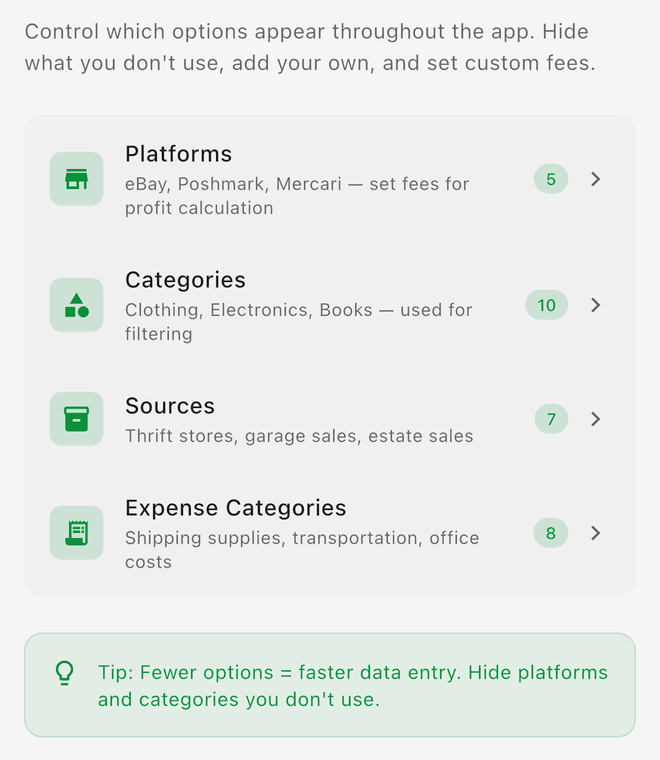
- Tap Customize Data (the tile labeled "Platforms, categories, sources & fees")
- Choose what to customize:
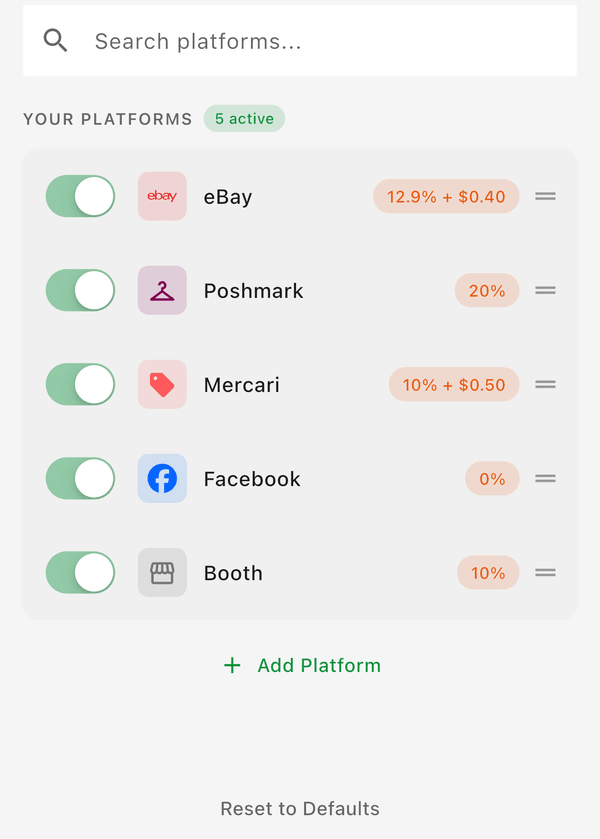
- Platforms -- Add or remove selling platforms (eBay, Poshmark, etc.)
- Categories -- Add custom item categories beyond the defaults
- Sources -- Add sourcing locations (Thrift Store, Estate Sale, etc.). Mark one as your default and it will auto-fill on every new item you add.
- Expense Categories -- Customize expense categories (shipping supplies, transportation, office costs, and so on)
Adding a Custom Platform
- Go to Customize Data > Platforms
- Tap + to add a new platform
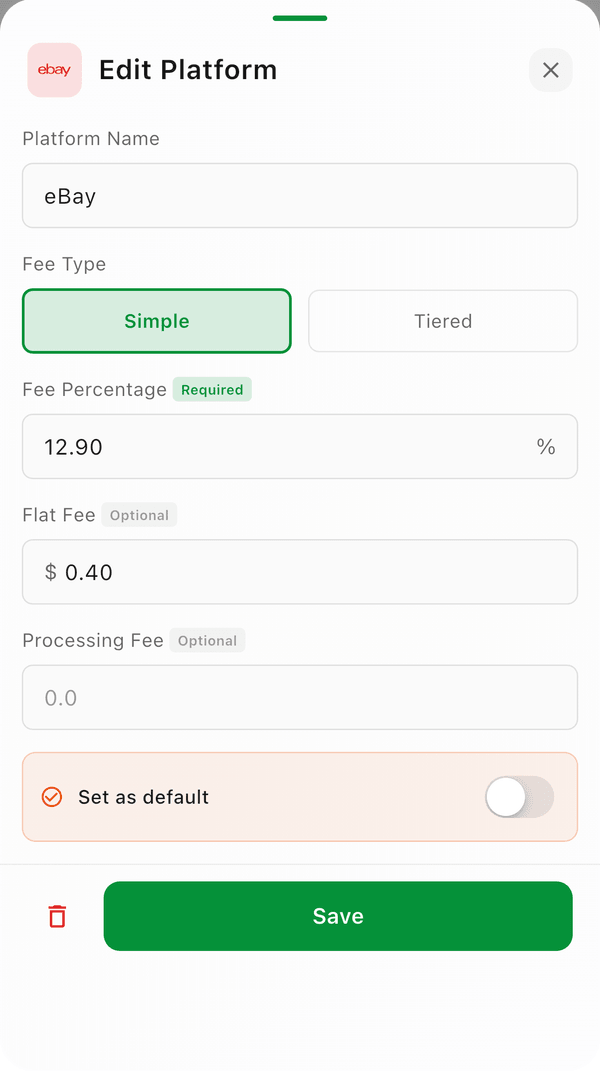
- Enter the platform name
- Set the fee structure (percentage, flat fee, or both)
- Set as Default for new items
- Save
Fees
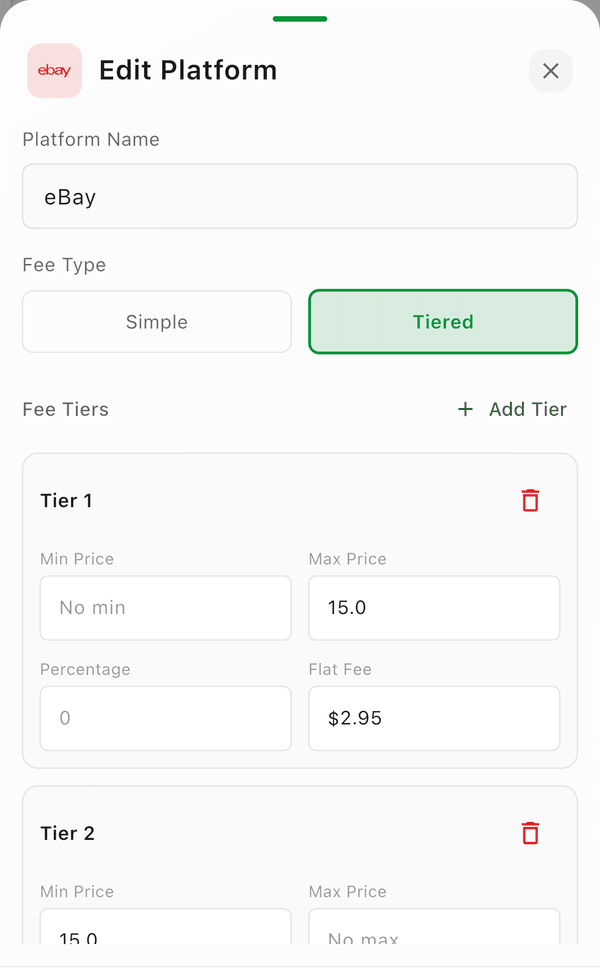
Fee structures can vary wildly by platform and user. You can customize the following:
- Fee Percentage
- Flat Fee
- Processing Fee
- Tiered based on pricing level
Good to Know
- Custom platforms appear in all dropdowns throughout the app (listing, profit calculator, etc.)
- You can hide platforms you don't use instead of deleting them
- Each list has a Reset to Defaults option that restores the default items and their order -- your custom items are not deleted
- Custom categories and sources help keep your data organized and your reports meaningful