 Flippd Help
How do I customize how my inventory list looks?
To customize your inventory display, go to Settings > Inventory Preferences and choose which fields appear on your inventory items, which features are enabled, and how the app behaves when you sell items or crop photos.
Step-by-Step
- Go to Settings (tap the gear icon in the top right)
- Tap Inventory Preferences
- Configure the options organized into the following sections:
Visible Fields
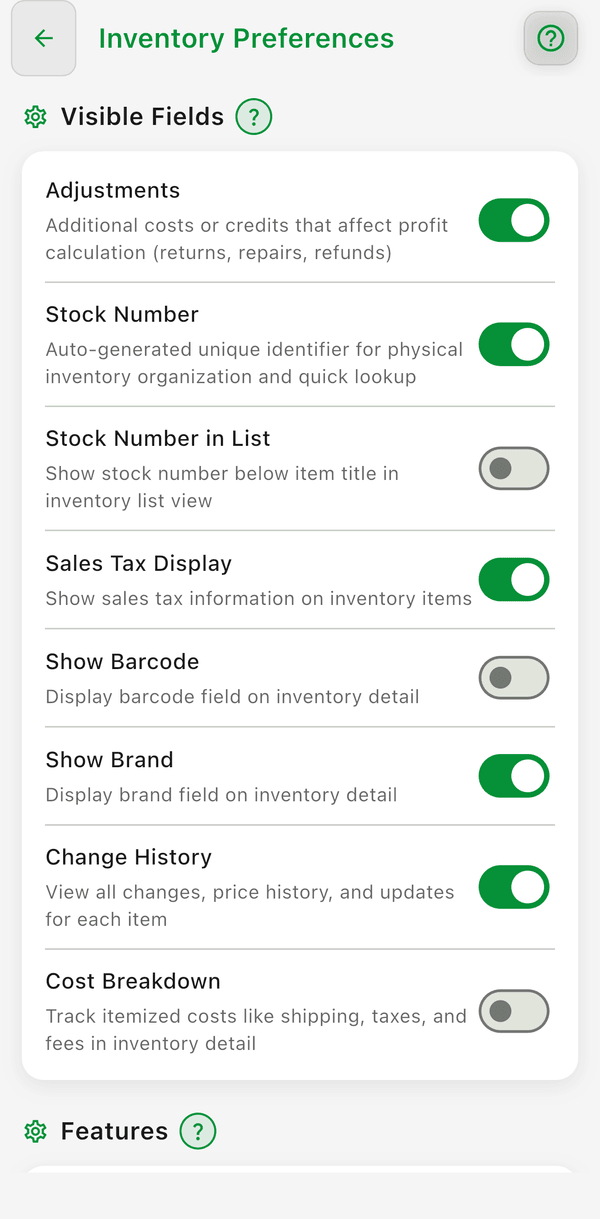
Toggle fields on or off to show or hide them on item detail and, where noted, in the list view:
- Adjustments -- Additional costs or credits that affect profit calculation (returns, repairs, refunds)
- Stock Number -- Auto-generated unique identifier for physical inventory organization and quick lookup
- Stock Number in List -- Show stock number below item title in inventory list view
- Sales Tax Display -- Show sales tax information on inventory items
- Show Barcode -- Display barcode field on inventory detail
- Show Brand -- Display brand field on inventory detail
- Change History -- View all changes, price history, and updates for each item
- Cost Breakdown -- Track itemized costs like shipping, taxes, and fees in inventory detail
Features
Enable or disable optional item features:
- Shipped Toggle & Tracking -- Mark items as shipped and track package delivery with carrier tracking numbers
- Link Expenses to Inventory -- Show expense linking in inventory and expense detail views
- Proof of Purchase Linking -- Attach purchase receipts to inventory items for easy reference
- Price Comparison -- Show price comparison research button on inventory items
- Allow Future Dates -- Enable setting Date Listed up to 1 year in the future
Behavior
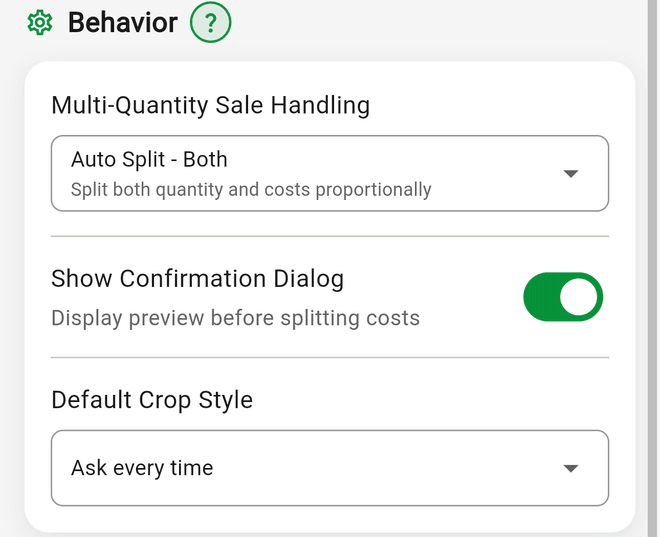
Control what happens when you sell part of a multi-quantity item or crop photos:
- Multi-Quantity Sale Handling -- what happens when you sell part of an item with a quantity above 1:
- Manual (Do Nothing) -- no automatic calculations; adjust costs yourself
- Auto Split - Quantity Only -- splits the quantity; costs stay with the original item
- Auto Split - Cost Only -- splits costs proportionally; the full quantity is marked sold
- Auto Split - Both -- splits quantity and costs proportionally
- Show Confirmation Dialog -- shows a preview before costs are split
- Default Crop Style -- the crop applied to new item photos: Smart 1:1, Smart 4:3, Custom 1:1, Custom 4:3, or Ask every time
- Changes apply immediately to your Inventory screen
Good to Know
- The price shown on each inventory row is based on the item's status, not a setting: Unlisted items show your Cost of Good, Listed items show cost → list price, and Sold items show the sale price with profit and ROI. To see your selling price in the list, mark the item as Listed. See What do the item statuses mean?
- Customize the display to show the information most important to your workflow
- Showing fewer fields makes the list cleaner and easier to scan
- Display settings are saved to your account and sync across devices
- These toggles control which fields and sections appear on item detail and, where applicable, in the list -- for example, turning off Cost Breakdown, Show Barcode, or Change History hides that section on the item detail screen too
- Feature toggles (Shipped Toggle & Tracking, Proof of Purchase Linking, and so on) affect which sections appear on item detail screens
- To hide entire app features like Death Pile, Aging Inventory or Bulk Purchases, use Settings > Feature Visibility instead
Related Articles
- How do I search, filter, and sort my inventory?
- How do I customize my selling platforms, categories, and sources?
- How do I use barcodes to tag and find inventory items?
- How do I attach a proof of purchase or receipt to an inventory item?
- How do I show or hide features like Death Pile and Bulk Purchases?