 Flippd Help
How do I download or save an item's photos?
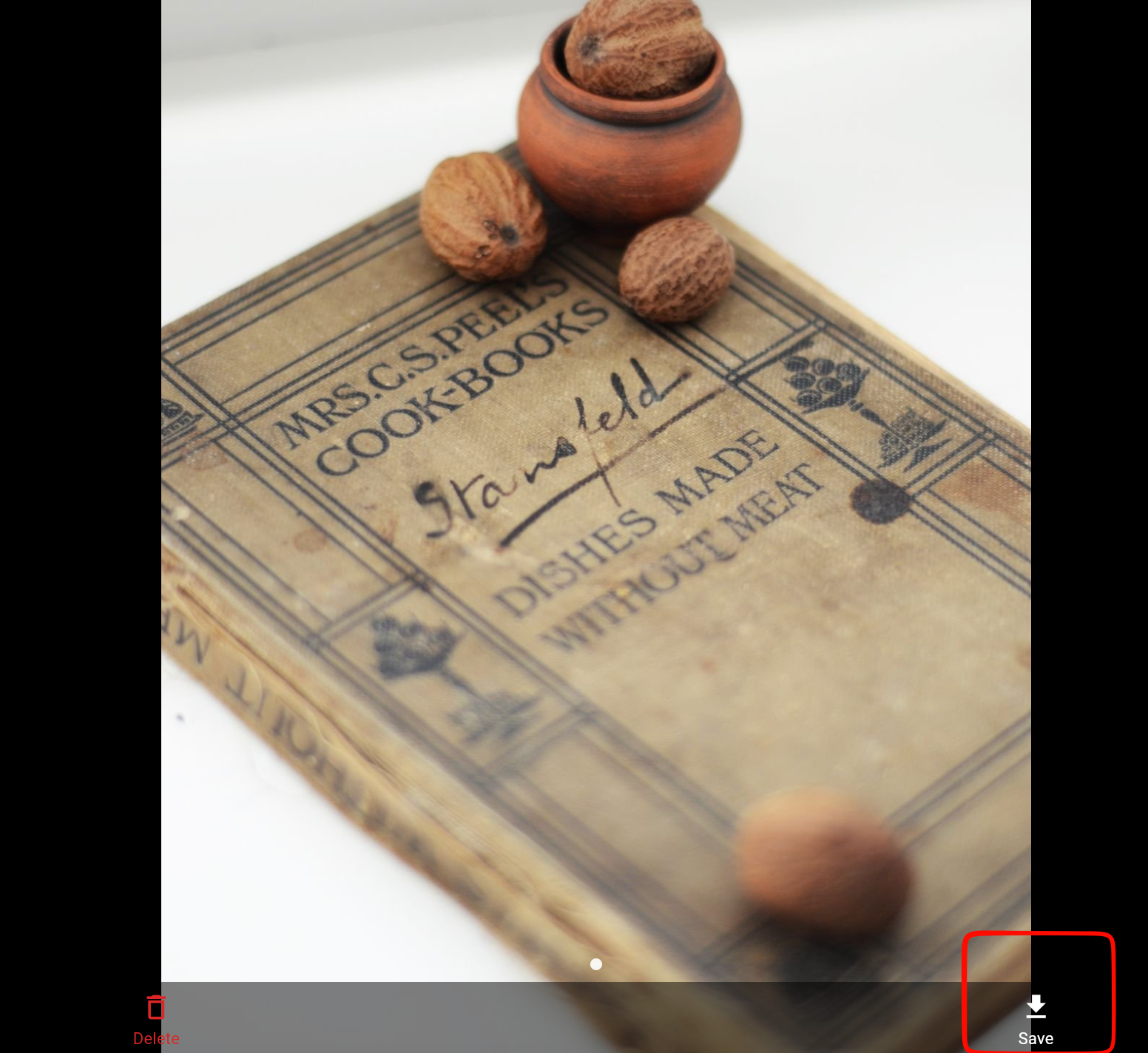
Open the item, click or tap a photo to open it full screen, then tap Save in the bar at the bottom. In the web app the photo downloads to your computer; on iPhone or Android it saves to your camera roll.
Step-by-Step
- Open the item
- Click or tap the photo you want -- it opens full screen
- Swipe or use the arrows to get to the right photo
- Tap Save at the right of the bottom bar, next to Delete (and Set as cover on photos that aren't the cover)
To save just the cover photo, tap the ⋯ button on the item's photo area and choose Download Image.
Where the Photo Goes
- Web app (Windows, Mac, Chromebook, any browser): the photo downloads as a normal image file (usually .jpg, sometimes .png or .webp) to your browser's downloads folder -- usually Downloads. You'll see Image downloaded. To find it, open your browser's downloads list (Ctrl+J on Windows and Chromebook, Cmd+Shift+J in Chrome on Mac, or the downloads icon in the toolbar). If your browser is set to ask where to save each file, it asks you first
- iPhone and Android: the photo saves to your camera roll / Photos app. You'll see Image saved to camera roll. If it doesn't save, allow photo access in your phone's Settings > Flippd > Photos
Good to Know
- Right-click doesn't work in the web app. The web app draws its screens differently from a normal website, so right-clicking a photo only shows the browser's page options -- there's no Save image as or Copy image
- Dragging a photo out of the browser to your desktop or another app doesn't work either
- "Save page as" won't save the photo -- it saves the web page as an HTML file. Use Save in the photo viewer instead
- Save one photo at a time; repeat for each photo you want
- Your original photos stay on the item -- saving a copy doesn't change or remove anything
Related Articles
- How do I add and manage multiple photos for an item?
- How do I edit an item's details, photos, or status?
- What can I do in the Flippd web version?