 Flippd Help
How do I edit an item's details, photos, or status?
To edit an item, tap it in your inventory to open the detail screen. Fields are editable as soon as the screen opens -- change what you need and tap Save.
Step-by-Step
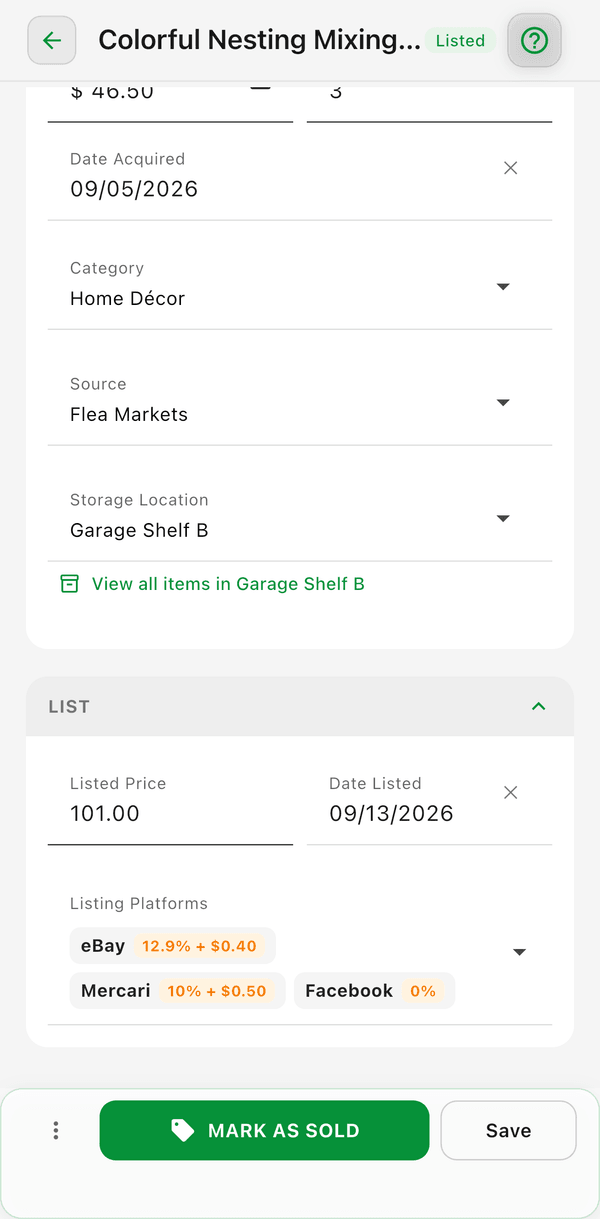
- Open the Inventory tab
- Tap the item you want to edit
- Update any fields -- title, cost, category, source, photos, or notes
- Tap Save
Photos and Image Tools
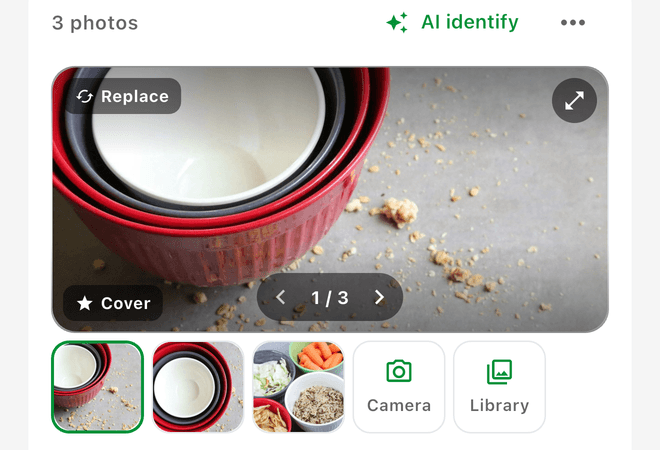
Flippd includes powerful image capabilities:
- Take a photo or choose from your library by tapping the camera icon
- AI Image Recognition -- When you add a photo, Flippd's AI can automatically suggest a title and category based on the image
- Smart Crop -- AI-powered cropping that detects the main object and suggests the best crop area
- Manual Crop -- Use the built-in cropper to adjust framing, aspect ratio, and rotation
- Full-screen view -- Tap any photo to view it full-screen
- Reorder photos -- Drag to rearrange the photo order
- Remove photos -- Tap an existing photo to remove or replace it
Photos are automatically compressed for fast loading while maintaining quality.
Changing Status: the Three-Dots (⋮) Menu
Status changes live in the bottom bar of the item detail screen. The big button performs the most likely next step (Mark as Listed for an Unlisted item, Mark as Sold for a Listed item, Share flip for a Sold item), and the ⋮ (three dots) menu on the left holds everything else. The menu adapts to the item's current status:
- Mark as Listed -- Marks the item as listed on a selling platform
- Mark as Sold -- Records a sale with price and fee details
- Mark as Unlisted -- Takes a Listed item off Listed and returns it to Unlisted. This is how you "take an item off listed" -- the item and all its details stay in your inventory; only the listing status and Date Listed are cleared. (Also available on a Sold item, where it clears the sale too.)
- Mark as Unsold -- Returns a Sold item to Listed and removes the sale from your reports (for returns or mistaken sales). The listing details are kept.
- Invoice Buyer -- On Sold items, creates a PDF invoice (requires Settings > Feature Visibility > Invoices)
- Duplicate -- Creates one or more copies of the item
- Print Label -- Prints a label for the item (available on any saved item)
- Scratch -- Moves the item to the Scratch Pile (no longer for sale, but kept for records)
- Delete -- Moves the item to Deleted
See What features are available on the item detail screen? for the full menu breakdown by status.
Deleting an Item
There are two ways to delete an item:
- From the inventory list -- Swipe left on any item and tap the trash icon
- From the item detail screen -- Tap the ⋮ (three dots) menu in the bottom bar and choose Delete
If you just want to stop selling an item without losing it, don't delete it -- use Mark as Unlisted (keeps it active) or Scratch (removes it from active inventory but keeps records) instead.
Recovering a Deleted Item
Deleted items aren't gone immediately -- they move to the Deleted status and can be recovered within 3 days. After 3 days, they are permanently deleted.
To recover a deleted item:
- Go to the Inventory tab
- Tap the filter and select Deleted to see recently deleted items
- Tap the item and choose Restore (you can also see the date it will be permanently deleted)
- Or from the list, swipe right-to-left on the item and tap Restore
The item will be restored to its original status (Unlisted, Listed, etc.).
Good to Know
- Saved changes sync to all your devices
- You can also use bulk edit to update multiple items at once