 Flippd Help
How do I duplicate or clone an inventory item?
There are two ways to duplicate an item:
- From the inventory list: swipe from left to right on the item and tap Dupe.
- From the item detail screen: tap the ... (more options) menu in the bottom bar and choose Duplicate.
Either entry point opens the Duplication bottom sheet where you can change the number of duplicated items from 1 to 99 max. Once saved, the items will be duplicated.
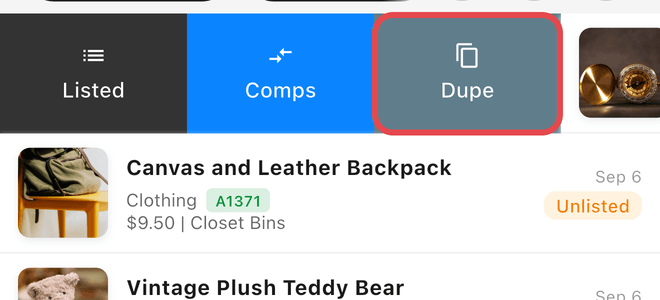
Step-by-Step
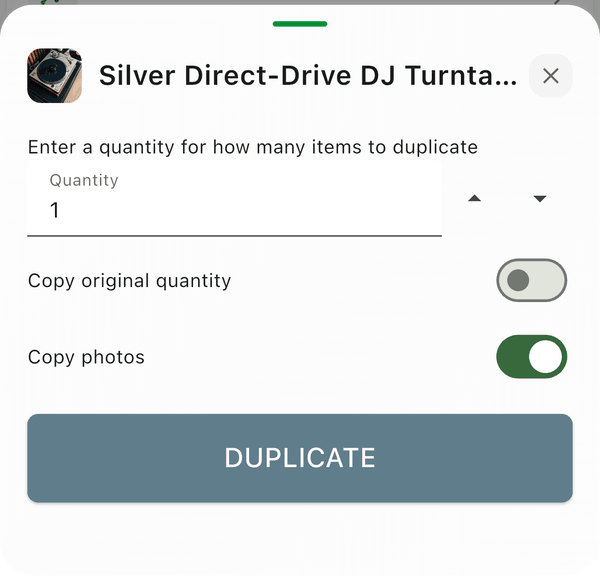
Good to Know
- The Copy photos toggle in the duplication sheet controls whether the duplicates get their own copies of the original's photos. Turn it on and each duplicate gets its own copy you can change without affecting the original; turn it off to duplicate without photos. Flippd remembers your last choice.
- The Copy original quantity toggle controls each copy's quantity: off, every copy has a quantity of 1; on, each copy keeps the original's quantity. Flippd remembers this choice too.
- Duplicates keep the original's status (Unlisted or Listed). Duplicating a Sold item drops the sale details and makes the copies Listed (or Unlisted if the original had no Date Listed)
- Duplicates count toward the free plan's 20-item limit -- duplicating is blocked if the copies would push you over it
- Use this when you have multiple similar items (e.g., same brand, different sizes) to save time