 Flippd Help
How do I export my inventory and sales data?
To export your data, go to Tools > Import / export, open the Export tab, choose all data or a specific year and what to include, then tap Export Your Data. Your file is an Excel workbook (.xlsx).
Step-by-Step
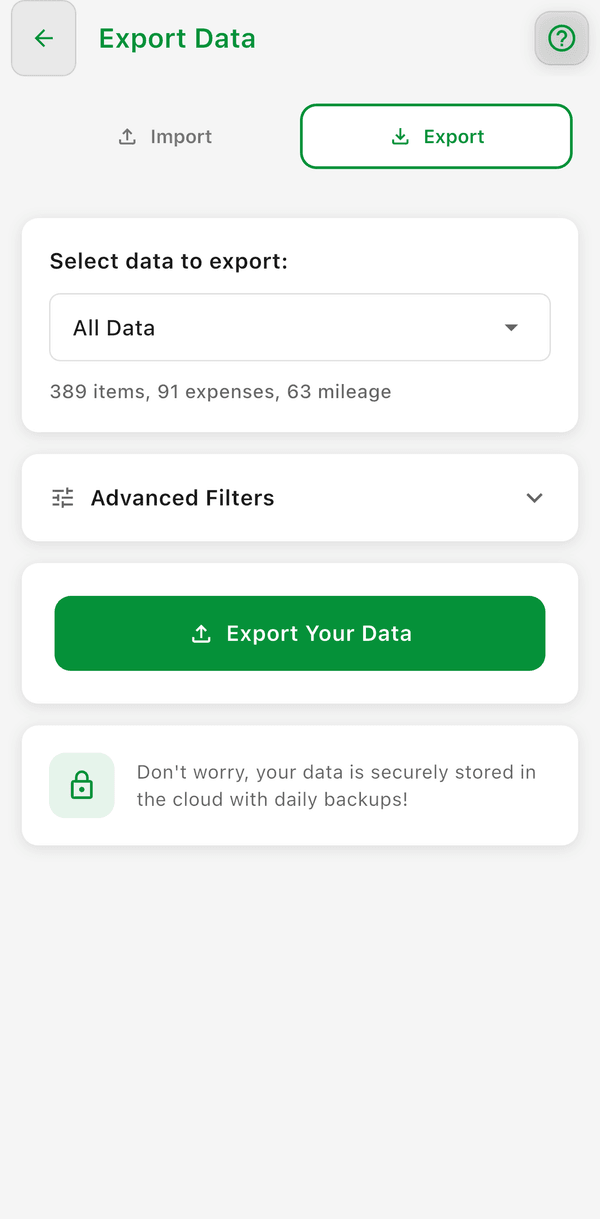
- Go to Tools > Import / export
- Tap the Export tab
- Choose All Data or a specific year to export
- Under Data to Include, select what goes in the file:
- Inventory -- All items with details, including your completed sales and their profit data
- Expenses -- Business expenses
- Mileage -- Mileage trips
- Optionally narrow the file with Advanced Filters (see below)
- Tap Export Your Data and download or share the file
What Gets Exported
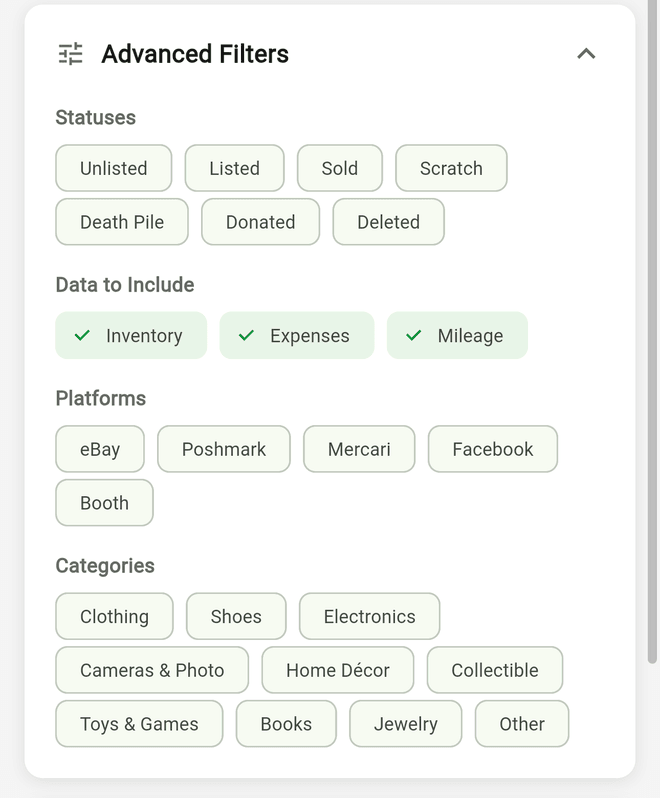
By default the export includes all of your data (or everything in the year you select) for each type you ticked. Search terms, filters, and sort options applied on the Inventory screen don't carry over to the export.
To limit the file, use the Advanced Filters section on the Export tab:
- Statuses -- only items with the statuses you pick
- Categories -- only items in the categories you pick
- Platforms -- only items on the platforms you pick
- Year Applies To -- which date the year you chose is matched against: Acquired date, Listed date, Sold date, or Acquired or sold date
Tap Reset to clear the filters. Storage location isn't an export filter -- for a report of one location, export everything, then open the file in Excel or Google Sheets and filter by the Storage Location column.
Custom fields (like SKU) are included automatically as extra columns.
Printing Your Inventory
There's no print button in the app — to print your inventory, export it first, then print the file from your device:
- Export your inventory as described above
- On Android, the file saves to Downloads (Files app → Downloads); on iPhone/iPad, use the share sheet to save or open it
- Open the file and use your phone's print option, or email it to yourself and print from a computer
Finding Your Exported File on Android
After exporting, your file is saved to your device's Downloads folder:
- Open the My Files (or Files) app on your Android device
- Tap Downloads -- your exported file will be listed with the most recent at the top
- You can also find it under Internal Storage > Download
- From there, you can email the file to yourself, upload to Google Drive, or open it directly
Troubleshooting: Formulas Not Working on the Summary Tab
The exported Excel file includes a Summary tab with formulas that calculate totals and breakdowns. These formulas may not work if you open the file in a preview mode on your phone.
iPhone / iPad
The iOS Files app opens Excel files in a read-only preview that does not run formulas. To fix this:
- Tap the Share button, then tap Open in Excel (requires the Microsoft Excel app from the App Store)
- If prompted, tap Enable Editing to exit Protected View
- Alternatively, open the file in Google Sheets or Apple Numbers
Android
Android's default file viewer also does not process Excel formulas:
- Open the file in the Microsoft Excel app (available on the Play Store) instead of the default viewer
- Tap Enable Editing if prompted
- Google Sheets and WPS Office also support most formulas
For Best Results
Open the exported file on a desktop computer (Windows or Mac) where Excel has full formula support. Some advanced formulas in the Summary tab may not calculate correctly on mobile versions of Excel.
Good to Know
- The export is always an Excel workbook (.xlsx) -- there is no CSV option. Excel, Google Sheets, and Numbers all open it, and you can save it as CSV from there if you need one
- Inventory screen filters never change what's in the file -- use Advanced Filters on the Export tab, or filter in your spreadsheet app after exporting
- If an export is cut short, the app shows "Export incomplete: X of Y inventory items were included" -- contact support for a complete export
- Exported files can be opened in Excel, Google Sheets, or imported into accounting software
- Use exports to back up your data regularly
- For tax preparation, use the dedicated Tax Report export in the Expenses section
- You can export your data anytime, even if you cancel your subscription