 Flippd Help
How do I import inventory from a CSV or spreadsheet?
To import inventory, go to Tools > Import / export, tap Select File To Upload, and choose your file — Flippd maps your columns to the right fields automatically.
Step-by-Step
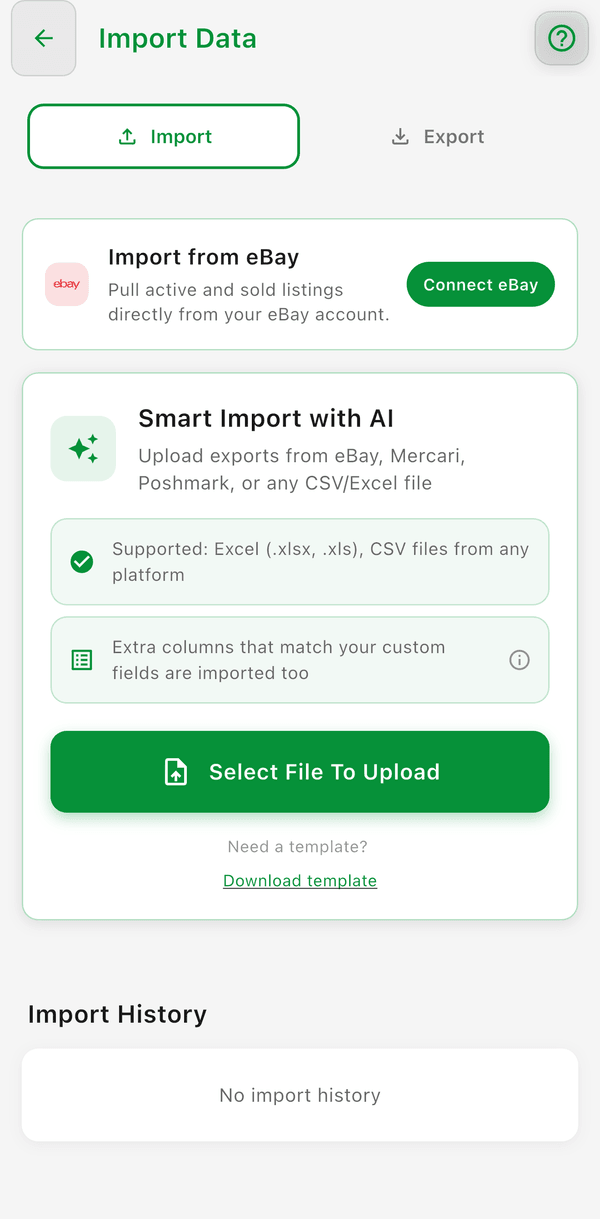
- Go to Tools > Import / export (it opens on the Import tab)
- Tap Select File To Upload and choose your CSV or spreadsheet file
- Flippd uploads the file and automatically matches your columns to fields like title, cost, and category
- Review the item counts (Unlisted, Listed, Sold) to make sure they look right -- once the import finishes, any Duplicates skipped are counted too
- Tap IMPORT
AI Column Mapping
Flippd's AI automatically matches your spreadsheet columns to the right fields — for example, it recognizes that "Purchase Price" means Cost of Good. There is no manual mapping step: it happens on its own when you upload, and it understands exports from eBay, Mercari, Poshmark, Vendoo, and generic spreadsheets. Clear column headers (like "Title", "Cost", "Date Sold") give the best results. If something lands in the wrong place, you can edit the imported items afterward.
Custom Fields Import Automatically
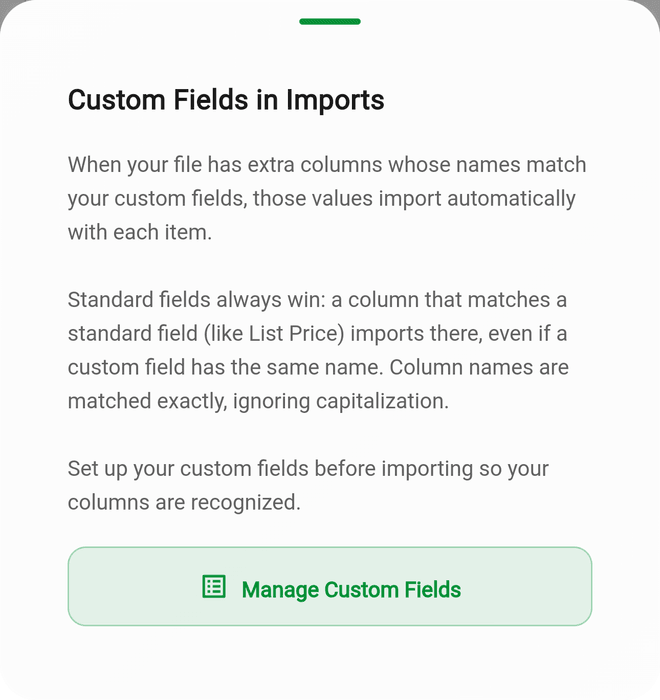
If you've set up custom fields (Settings > Custom Fields), extra columns in your file whose names match your custom fields import automatically — for example, a "Color" column fills a custom field named "Color" on each imported item.
- Column names are matched to your custom field names exactly; capitalization doesn't matter
- Set up your custom fields before importing so your columns are recognized
- Standard fields always take priority: a column that matches a standard field (like List Price) imports there, even if you have a custom field with the same name
- Extra columns that don't match any custom field are saved into each item's Notes, so that data isn't lost either
Duplicates
- The same file can't be imported twice. Re-uploading a file you've already imported (the same file and the same sheet) is blocked while any items from that earlier import are still in your inventory. Delete those items first if you want to re-import it. A different sheet from the same workbook is fine.
- Rows are only skipped as duplicates when they carry a marketplace item ID (such as an eBay "Item number") that matches an item you already have. The count shows as Duplicates skipped after the import.
- There's no matching by SKU or title. A row without a marketplace item ID always imports as a new item, even if it looks like one you already have. There's no duplicate review step for spreadsheet imports -- that's only for marketplace imports like eBay.
- There's no undo for an import. To back one out, find the imported items with search and filters, select them in bulk, and delete them.
Good to Know
- Supported file formats: Excel (.xlsx, .xls, .xlsm) and CSV — you do not need to convert Excel files to CSV. Our own import template is an .xlsx file. Google Sheets and Numbers users can export as either format.
- Files must be under 20 MB. If your upload fails or the app says "Upload failed", the file is usually too large — spreadsheets with embedded photos are the most common cause. Delete the photo column (or export as CSV, which drops images) and try again.
- You can import up to 5,000 items in a single import
- Only one worksheet is imported from a workbook -- the first sheet by default. If your file has several sheets (for example an Inventory tab and a Sold tab), pick the one you want under Sheet to import, then upload the file again and pick the next sheet to import the others
- On the free plan the import stops at the 20-item limit, and it's refused outright if you already have 20 items
- Large imports may take a moment to process
- Item status comes from your file: include a Status column and items import as Unlisted, Listed, or Sold -- the import preview shows a count of each. Rows without a status import as Unlisted.
- You can edit imported items individually after import if anything needs fixing
- Back up your spreadsheet before importing in case you need to re-do it