 Flippd Help
How do I prepare my tax reports and export data for my accountant?
Your tax reports live under Reports > Tax Reports: the P&L Statement, the Schedule C Summary (US businesses), and the Mileage Log PDF. To hand your accountant the raw data, go to Tools > Import / export, open the Export tab, pick the tax year, and tap Export Your Data.
Tax Reports in the App
| Report | What It Gives You |
|---|---|
| P&L Statement | Your profit and loss for the year |
| Schedule C Summary (US) | Expenses organized by IRS Schedule C line, cost of goods sold, and your mileage deduction, with Export PDF / Export CSV |
| Mileage Log | IRS-ready mileage log (PDF) for your accountant |
Exporting Your Data
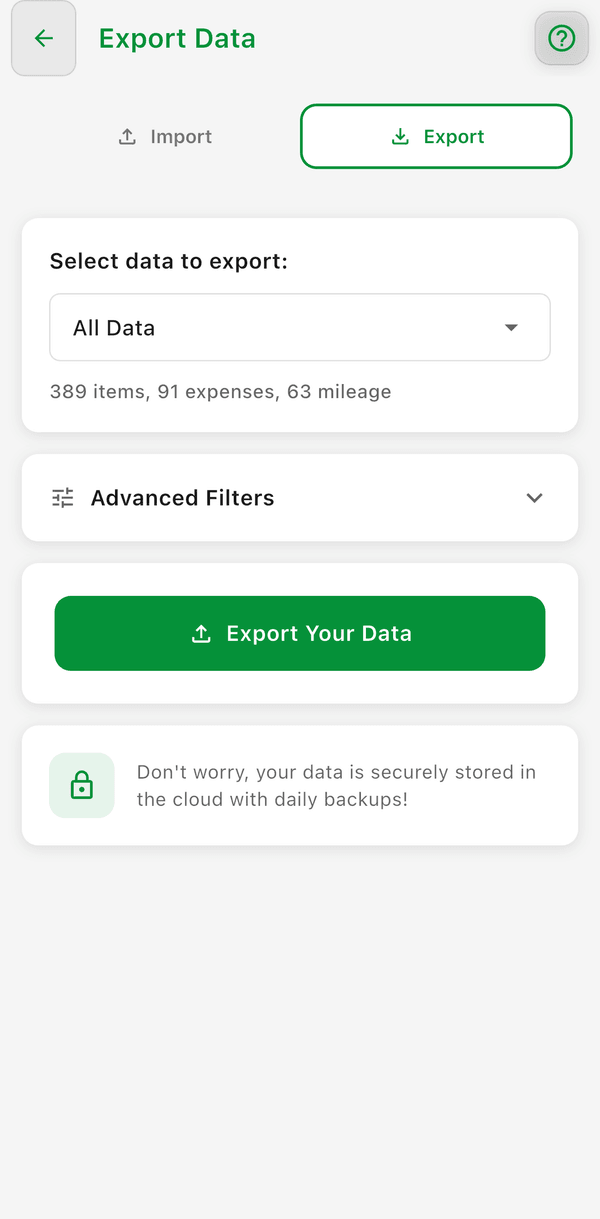
- Go to Tools > Import / export and open the Export tab
- Under Select data to export:, pick the tax year (or All Data)
- Optionally tap Advanced Filters to choose the data to include (Inventory, Expenses, Mileage), what the year applies to, and any categories, platforms, or statuses
- Tap Export Your Data
- Send the Excel file to your accountant
The export is an Excel workbook with five sheets:
| Sheet | What It Includes |
|---|---|
| Inventory | Your items for the selected year |
| Expenses | Your expenses, with category and date |
| Mileage | Your trips and their deductions |
| Monthly | Month-by-month figures |
| Summary | Totals for the selected year |
Schedule C Category Mapping (US)
Your expense categories are mapped to specific lines on IRS Schedule C (Form 1040), so the Schedule C Summary comes out organized the way your accountant expects -- for example, Platform Fees on line 10 (Commissions and fees) and Inventory Purchases as Cost of goods sold. Built-in categories are pre-mapped, and you can change any mapping from Reports > Tax Reports > Schedule C Summary, then the Schedule C Categories icon. See How do I map my expense categories to IRS Schedule C lines?.
Good to Know
- Flippd is not tax software and doesn't file taxes for you -- always consult a tax professional
- The more consistently you track expenses, receipts, and mileage throughout the year, the easier tax time is
- You can export at any time -- you don't have to wait for year end
- Keep your receipt photos attached to expenses for complete records -- they stay in the app and aren't included in the spreadsheet export