 Flippd Help
How do I reset duplicate items or start over?
If you have duplicate items in your inventory, you can find and merge them under Tools > Data Health. If you want to wipe your inventory and start completely fresh, reach out to Flippd support to request a manual account reset.
Step-by-Step
Option 1: Find and merge duplicate items with Data Health
- Open the Tools tab.
- Under Needs attention, tap Data Health.
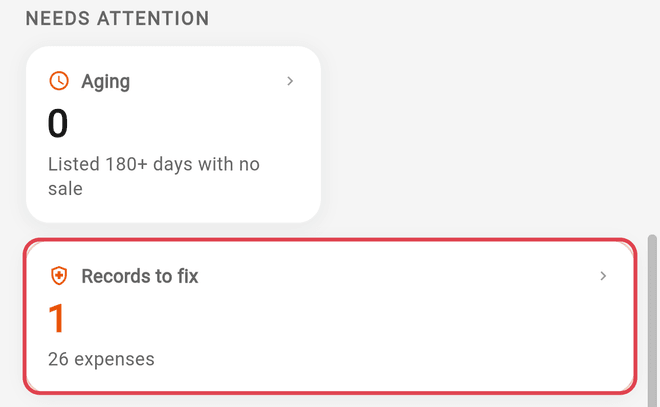
- If you have not scanned recently, tap Run the first scan (or wait for the automatic scan to finish).
- Look for Exact duplicates or Likely duplicates under the scan findings.
- Tap the duplicate check to view the flagged item groups.
- Tap Merge… on a duplicate group to open the Merge duplicates sheet.
- Choose Keep this one next to the item you want to keep, then tap Merge into. The duplicate copies are removed, and photos, notes, and listings are combined into the kept item.
Option 2: Request a manual reset from support to start fresh
- Tap the ? Help icon in the header.
- Send a message to Flippd support requesting an account reset to start completely fresh.
- Support will confirm your request and manually reset your inventory data.
Good to Know
- No self-service wipe: Flippd does not have an in-app wipe button to delete all items at once, protecting you against accidental data loss. Starting completely fresh is handled manually by support.
- Exact vs. likely duplicates: Exact duplicates share a barcode, SKU, or marketplace listing. Likely duplicates share a title along with matching cost, source, or acquisition date.
- Undo merge: When you merge duplicates through Data Health, an undo option appears immediately, and merges can be undone for up to 30 days.
- Duplicates after an import: If duplicates appeared after an eBay import, check for pending reviews under Listings awaiting review or Review duplicate matches before manually deleting items.