 Flippd Help
How does automatic trip detection work?
Flippd can automatically detect when you're driving and log the trip for you. Tap Manage on the tracking card in the Mileage tab, choose Tracking mode, then Automatic, and Flippd records your trips in the background.
How It Works
- Open the Mileage tab
- Tap Manage on the tracking card, then Tracking mode, and choose Automatic
- Grant location permissions when prompted -- recording in the background needs Always location access
- Go about your day -- Flippd detects when you start driving and records:
- Start and end locations
- Distance traveled
- Trip date and time
- When the trip saves, you get a notification: Trip saved -- tap to classify
- Classify the trip as business or personal
Tracking Modes
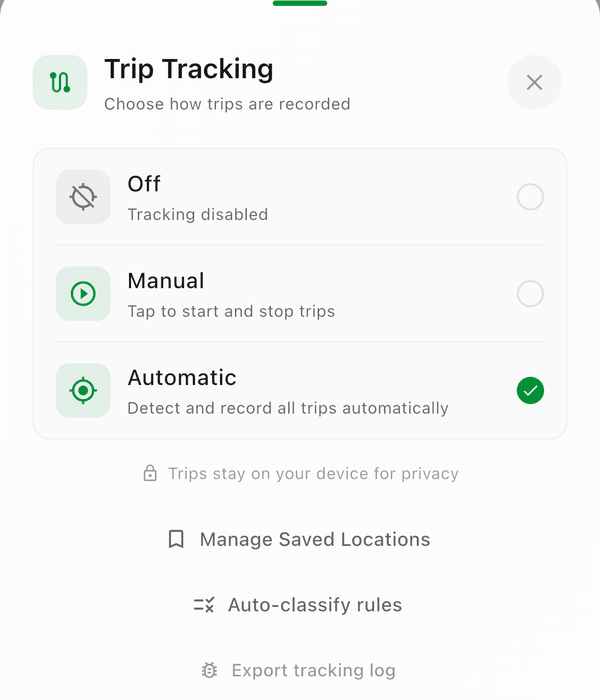
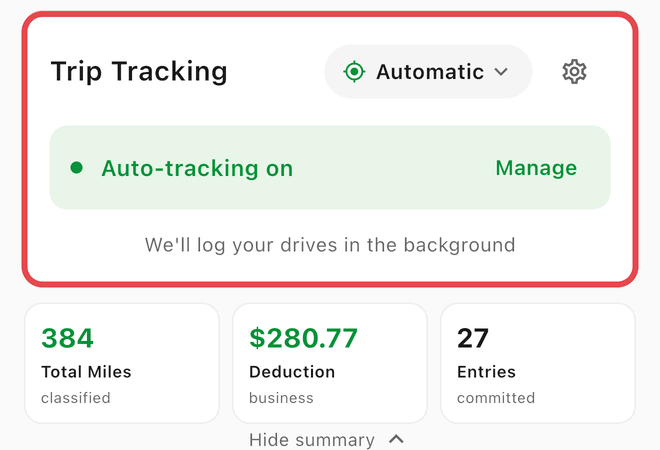
The Trip Tracking sheet offers three modes:
- Off -- Tracking disabled; use manual trip entry only
- Manual -- Tap to start and stop trips yourself with the Start Trip / Stop Trip button
- Automatic -- Detect and record all trips automatically
You can switch modes anytime from Manage > Tracking mode in the Mileage tab.
Reviewing Auto-Detected Trips
Auto-detected trips appear in your mileage log for review. For each trip:
- Verify the distance is correct
- Classify it as Sourcing, Shipping, Supplies, Banking (all business) or Personal -- or swipe left for business, right for personal
- Save, or dismiss it if it wasn't a business trip
Auto-Classify Rules
Open Manage > Auto-classify rules and Flippd classifies trips the moment they save:
- Saved places -- turn on Auto-classify as business for a saved location, and trips ending there are added to business mileage automatically
- Frequent routes -- after you classify the same drive the same way a few times, Flippd asks Always classify this route?
- Work hours -- trips starting during the hours you set become business mileage automatically
When more than one rule matches, saved places win, then frequent routes, then work hours.
Trip Detection Status
The Mileage tab shows a status indicator when auto-tracking is active so you know Flippd is recording. You can see whether a trip is currently in progress and the live distance.
If tracking can't run, a banner at the top of the Mileage tab tells you why -- location services are off, location permission was denied, or Always location access is needed so trips record in the background -- with a Fix button.
Good to Know
- Auto-tracking uses your device's location services and requires location permissions
- Battery impact is minimal -- Flippd uses efficient background location
- Auto-tracking is included on the free plan
- Auto-tracked trips are only visible in the mobile app -- the web app shows Trips live on your phone, because trips stay on your device for privacy
- You can still add trips manually even with auto-tracking enabled
- Review and classify auto-detected trips regularly so they're ready at tax time
- The onboarding modal walks you through setup the first time you enable tracking