 Flippd Help
How do I create and send an invoice to a buyer?
Flippd can generate a branded PDF invoice for any item you've sold. Turn on the Invoices feature, mark an item as Sold, then choose Invoice Buyer from the item's more-options menu to fill in the buyer's details and share the invoice.
Turn On the Invoices Feature
The Invoice Buyer action is off by default. To enable it:
- Go to Settings > Feature Visibility
- Turn on Invoices
- A one-time intro explains how it works
Step-by-Step
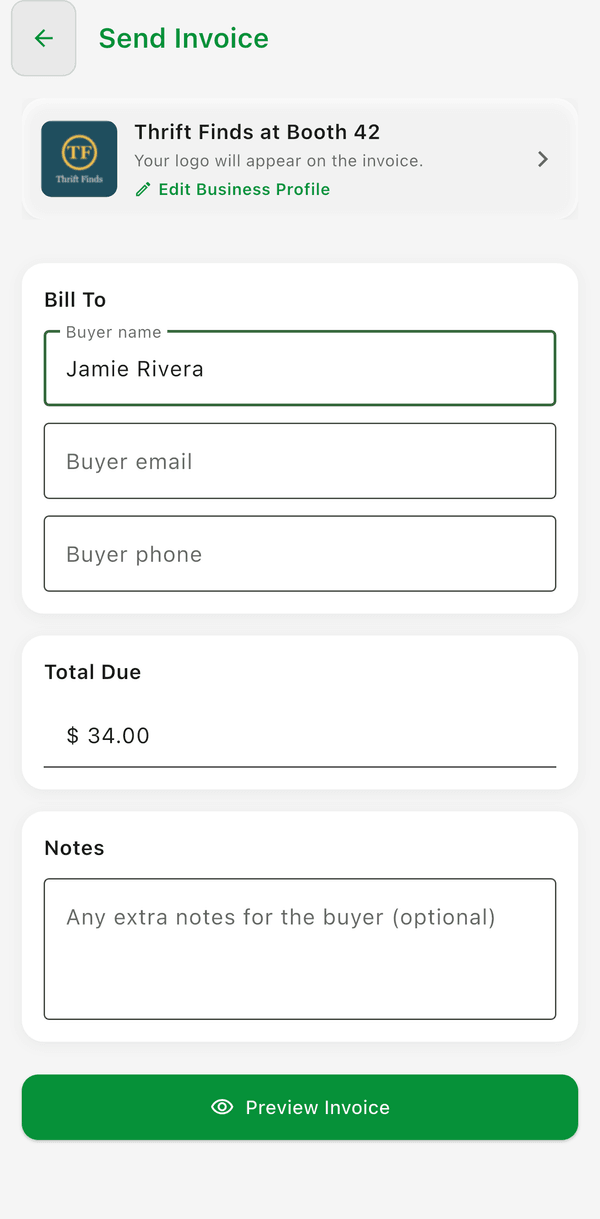
- Mark the item as Sold
- Open the item, tap the ... (more options) menu in the bottom action bar
- Tap Invoice Buyer -- the Send Invoice screen opens
- Fill in the details:
- Buyer name, email, and phone
- Total Due (pre-filled with the item's sale price)
- Notes (optional)
- Tap Preview Invoice to check the PDF
- Tap Generate & Share Invoice to send it through your phone's share sheet (email, text, AirDrop, etc.)
What's on the Invoice
The generated PDF includes:
- Your business logo, name, and address (from your Business Profile)
- An invoice number (the item's stock number) and the current date
- A Bill To section with the buyer's contact details
- The item -- description, thumbnail, quantity, unit price, and line total
- Your payment methods (Zelle, Venmo, PayPal, Cash App, wire, or custom) from your Business Profile, printed under a How to Pay heading
- The total due, plus any notes you added
- A footer -- set your own in Business Profile > Invoice footer (optional), or leave it blank to use the default "Invoice your clients with Flippd - getflippd.com"
Good to Know
- Invoicing is free and has no limits on how many you create
- Set up your Business Profile first (logo, address, payment methods) so invoices look professional -- otherwise the PDF uses defaults
- Buyer details and notes are saved back to the item, so if you invoice the same buyer again the fields are pre-filled
- The Total Due defaults to the item's sale price but you can change it before sharing -- useful for adding shipping or combining a discount
- Flippd doesn't track invoice statuses (sent/paid) -- each invoice is a one-off PDF you share directly with the buyer
- The Invoice Buyer action only appears on items marked Sold