 Flippd Help
How do I record a sale and track my profit?
To record a sale, open the item and tap Mark as Sold, then enter the sale price and shipping details. Flippd automatically calculates your profit.
Step-by-Step
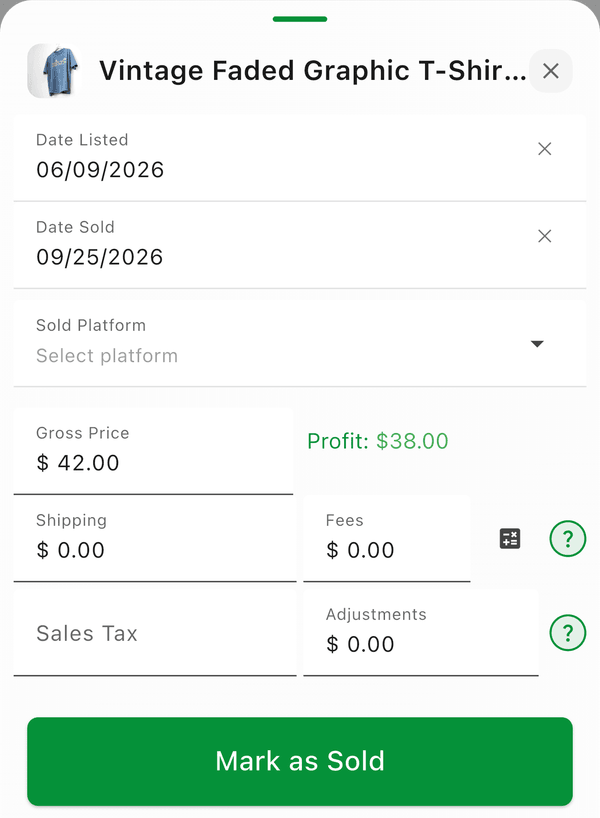
- Find the item -- it can be Listed or Unlisted; you don't have to list it first
- Tap the item to open its details
- Tap Mark as Sold (or choose it from the ⋮ menu in the bottom bar)
- Enter the sale details:
- Gross Price -- What the buyer paid
- Shipping -- What you paid to ship
- Fees -- Automatically calculated based on the platform
- Date Sold
- Date Listed -- Filled in for you if the item was already listed
- Tap Mark as Sold
Flippd calculates your profit: Sale Price - Cost - Fees - Shipping = Net Profit
More Fields on the Form
- Quantity Sold -- Appears when the item has a quantity above 1, so you can record a partial sale and keep the rest in stock
- Sales Tax -- Tax you collected, kept separate from your sale price
- Advanced > Adjustments -- Change your profit after the fact: a Cost adjustment for returns, extra fees, or promotions, or a Credit for money you received such as a shipping overcharge or partial refund
Good to Know
- Fees are approximations based on your platform settings and may vary. You can edit the Fees field directly, or tap the ⋮ next to it for a fee calculator
- Date Sold must be on or after the Date Acquired
- To sell several items at once, multi-select them in the inventory list and tap Mark Sold. The sale price is pre-filled from each item's list price -- adjust it if something sold for a different amount
- Your profit appears immediately in your Reports and Home dashboard