 Flippd Help
What features are available on the item detail screen?
The item detail screen is more than just viewing an item's info. It includes price history, activity history, linked expenses, cost breakdown, and quick access to price research.
Photo Gallery
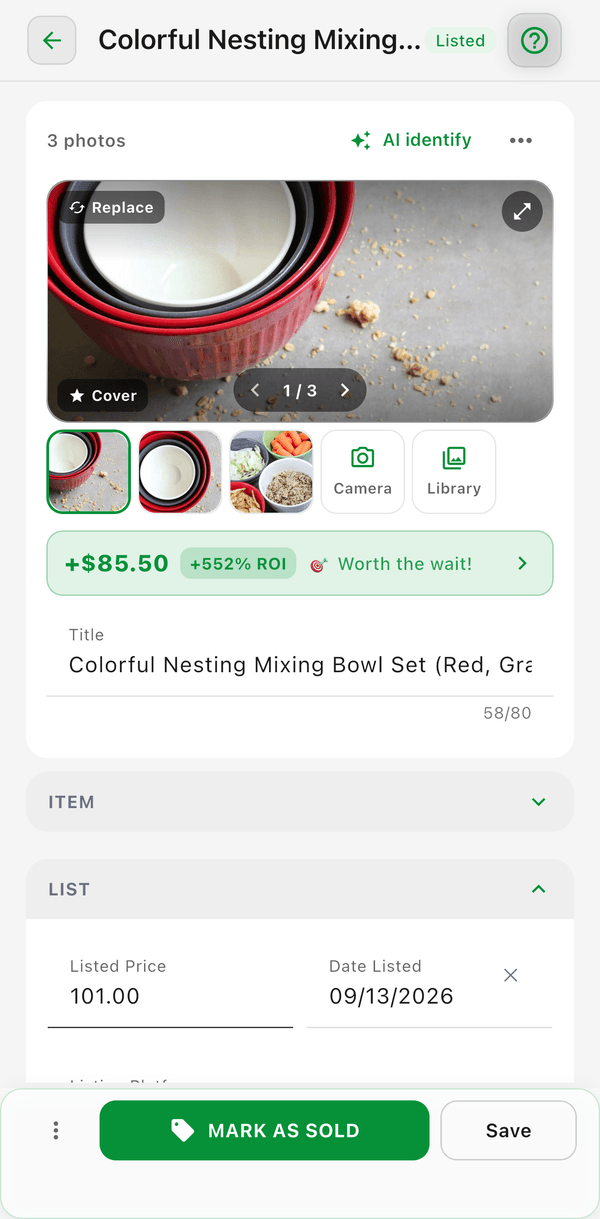
Add up to 8 photos per item -- different angles, tags, and condition shots. Swipe the main image to move through the gallery, drag thumbnails to reorder, and set any photo as the cover. See How do I add and manage multiple photos for an item?.
Price History
See how you've adjusted the item's price over time. Every time you update the listing price, Flippd records it so you can track pricing changes and see what price point ultimately sold.
Activity History
View a timeline of everything that's happened with the item:
- When it was added to inventory
- When it was listed and on which platform
- Price changes
- When it sold and for how much
Linked Expenses
Connect business expenses directly to a specific item:
- Tap Linked Expenses on the item detail screen
- Select expenses related to this item (e.g., shipping supplies, repair costs, cleaning)
- Linked expenses are included in the item's profit calculation
This gives you a more accurate profit picture for items with extra costs beyond the original purchase price.
Cost Breakdown
Break down the total Cost of Good into individual components:
- Original purchase price
- Shipping to you
- Repair or refurbishment costs
- Other costs
The cost breakdown total replaces the single Cost of Good field, giving you more detailed tracking.
Price Research
Quickly research what similar items are selling for without leaving the detail screen:
- Tap the price research option on the item detail screen
- Flippd opens Price Comparison pre-filled with the item's title
- See market prices to help you set or adjust your listing price
Barcode
Associate a product barcode with an item so you can find it later by scanning:
- Tap the Barcode field on the item detail screen
- Scan the barcode with your camera or type it in manually
- To find the item later, tap the scanner icon on the Inventory tab and scan the barcode
Enable this feature in Settings > Inventory Preferences > Show Barcode.
Proof of Purchase
Link receipts to items for record-keeping, tax documentation, or warranty purposes:
- Tap the Proof of Purchase section on the item detail screen
- Scan a new receipt, upload from your library, or link an existing receipt
- Linked receipts appear as chips showing the merchant name and date
- Receipt totals are informational only and never affect profit calculations
Enable this feature in Settings > Inventory Preferences > Proof of Purchase Linking.
The Three-Dots (⋮) Menu
The bottom action bar has three parts: the ⋮ (three dots) menu on the left, a large primary action button in the middle (Mark as Listed for Unlisted items, Mark as Sold for Listed items, and Share flip for Sold items), and Save. The ⋮ menu holds every other status change and item action, and its options adapt to the item's current status:
| Item status | ⋮ menu options |
|---|---|
| Unlisted | Mark as Listed, Mark as Sold, Duplicate, Print Label, Scratch, Delete |
| Listed | Mark as Unlisted, Duplicate, Print Label, Scratch, Delete |
| Sold | Mark as Unlisted, Mark as Unsold, Invoice Buyer*, Mark as Listed, Duplicate, Print Label, Scratch, Delete |
| Scratch | Restore, Delete |
* Invoice Buyer appears when enabled in Settings > Feature Visibility > Invoices.
What each option does:
- Mark as Listed / Mark as Sold -- Move the item forward in the lifecycle (choose platform and price, or record the sale details)
- Mark as Unlisted -- Take an item off Listed and return it to Unlisted. Nothing is deleted -- the item keeps all its details; only the listing status and Date Listed are cleared. On a Sold item this also removes the sale.
- Mark as Unsold -- Reverse a sale: the item returns to Listed with its listing details intact, and the sale is removed from your reports
- Invoice Buyer -- Generate a branded PDF invoice for the buyer of a Sold item
- Duplicate -- Create 1-99 copies of the item
- Print Label -- Print a label for this item
- Scratch / Restore -- Move the item to the Scratch Pile (kept for records, out of active inventory), or bring it back
- Delete -- Move the item to Deleted (recoverable for 3 days, then permanently removed)
Duplicate
Make a copy of the current item directly from the detail screen:
- Tap the ⋮ (more options) menu in the bottom action bar
- Choose Duplicate to open the Duplication bottom sheet
- Pick how many copies to create (1 to 99) and save
This is the same flow available by swiping right on an item in the inventory list -- use whichever entry point is more convenient. See How do I duplicate or clone an inventory item? for more details.
Invoice Buyer
For items marked Sold, the ⋮ (more options) menu includes Invoice Buyer, which generates a branded PDF invoice you can share with the buyer. Turn it on first in Settings > Feature Visibility > Invoices. See How do I create and send an invoice to a buyer?.
Good to Know
- All item detail features are optional -- use as many or as few as you need
- Linked expenses improve your per-item profit accuracy
- The cost breakdown is useful for items where you invest in cleaning, repair, or shipping before resale
- Some fields are only visible when enabled in Settings > Inventory Preferences
Related Articles
- How do I edit an item's details, photos, or status?
- How do I add and manage multiple photos for an item?
- How do I create and send an invoice to a buyer?
- How does Flippd calculate my profit?
- How do I use Price Comparison to research item prices?
- How do I add and track business expenses?
- How do I use barcodes to tag and find inventory items?
- How do I attach a proof of purchase or receipt to an inventory item?