 Flippd Help
How do I create and track reselling goals?
To create a goal, go to Tools > Goals, tap Add Goal, write what you want to accomplish, set a target date, and tap Save. Custom goals are self-managed -- tap Mark Complete when you've done it. If you'd rather have Flippd track progress for you, accept a challenge from Suggested for you instead.
Creating a Custom Goal
- Go to Tools > Goals
- Tap Add Goal
- Enter a Title
- Fill in Goal -- what you want to accomplish (required)
- Set a Target Date
- Add Notes (optional)
- Tap Save
Your goal appears under Your goals with the days remaining until its target date.
Accepting a Challenge
Challenges are pre-built goals Flippd picks from your data. Under Suggested for you, tap Accept Challenge on one you like (or Not Now to hide it). Challenges show a progress bar and your current count versus the target, and they update automatically as you record sales and list items.
Tracking Progress
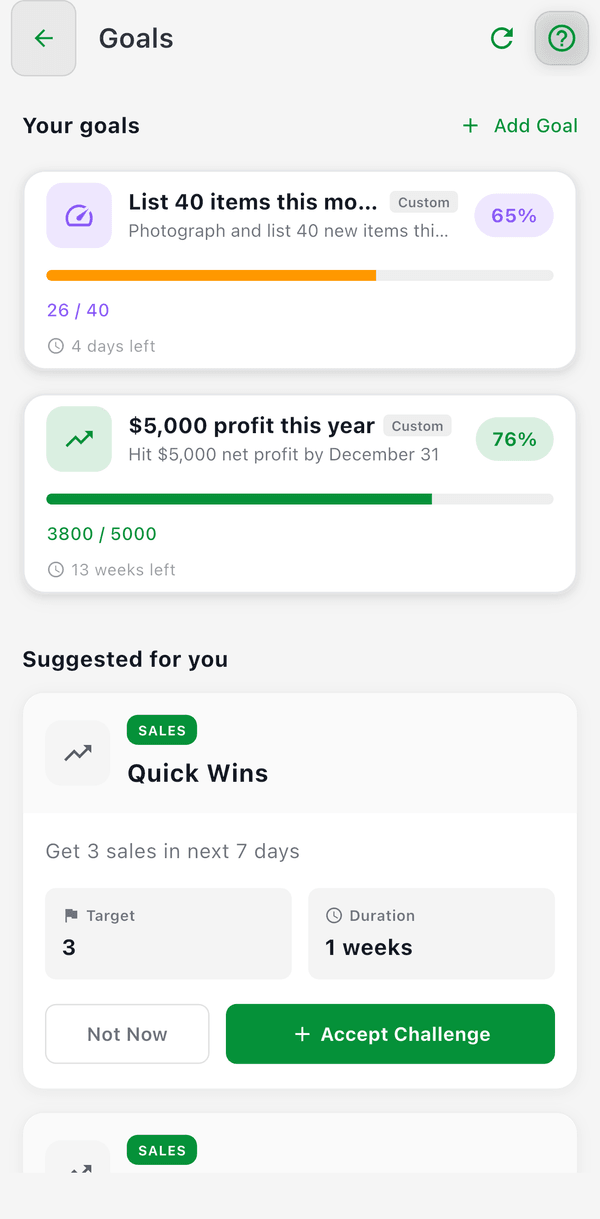
- Challenges track automatically -- progress updates as you sell and list
- Custom goals are self-managed -- open the goal and tap Mark Complete when you've achieved it
On the Goals screen, you'll see your active goals, their days remaining, and progress bars on challenges. The goal card on Home shows your most urgent goal, and the Goals card under Tools shows how many you've completed out of the total.
Completing Goals
When you finish a goal (a challenge reaches 100%, or you tap Mark Complete on a custom goal):
- You get a celebration the next time you open Goals
- The goal moves to the Completed section at the bottom of the Goals screen
- Your achievement history is saved so you can look back on your wins
Good to Know
- Start with achievable goals and increase them as you succeed
- Goals with deadlines are more effective than open-ended ones
- If you miss a goal, adjust the target and try again -- it's about progress, not perfection
- Goals are also one tap away from the Home goal card (Set your first goal when you have none)