 Flippd Help
How do I edit multiple items at once with bulk actions?
To bulk edit items, tap the checklist icon on the Inventory screen to enter bulk edit mode and select items. The selection bar then gives you three actions: Edit Details to update shared fields, Mark Listed to list the whole selection (each item with its own price), and Mark Sold to record sales for several Listed items at once.
Bulk Edit Mode
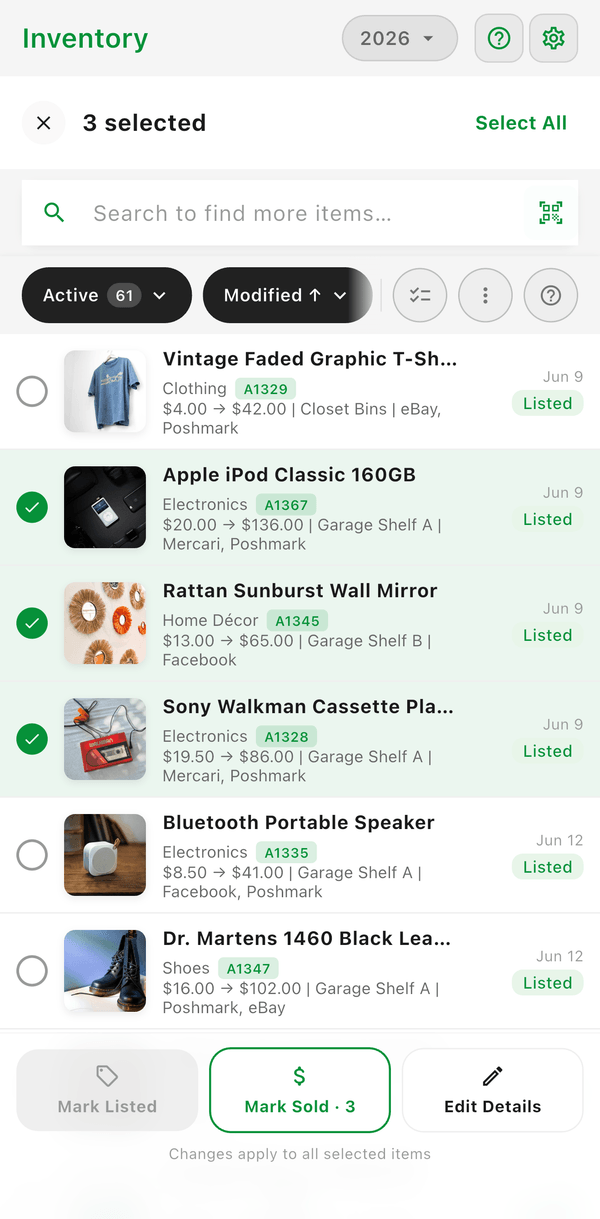
- Open the Inventory tab
- Tap the checklist icon to enter bulk edit mode
- Select the items you want to update (or tap Select All)
- Use the buttons on the selection bar:
- Mark Listed -- List every selected Unlisted item in one go (see below)
- Mark Sold -- Record a sale for every selected Listed item (see below)
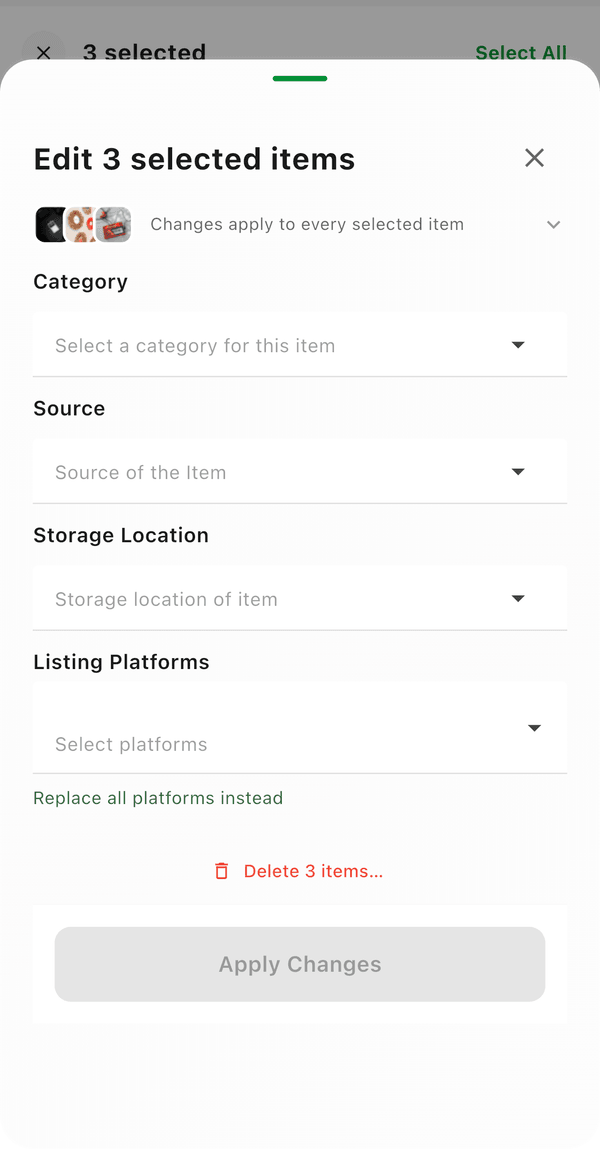
- Edit Details -- Change shared fields on all selected items:
- Category -- Assign a new category
- Source -- Set where the items came from
- Storage Location -- Reassign where items are stored (or clear it)
- Listing Platforms -- Add platforms to the items, or replace their existing platforms
- To remove the selected items, tap Edit Details and use the Delete N items… link at the bottom of the sheet (see Bulk Delete below)
Mark Multiple Items as Listed
Tap Mark Listed on the selection bar to list all selected Unlisted items at once. The Mark as Listed sheet opens, and every listing still gets its own price -- you set them all in one screen:
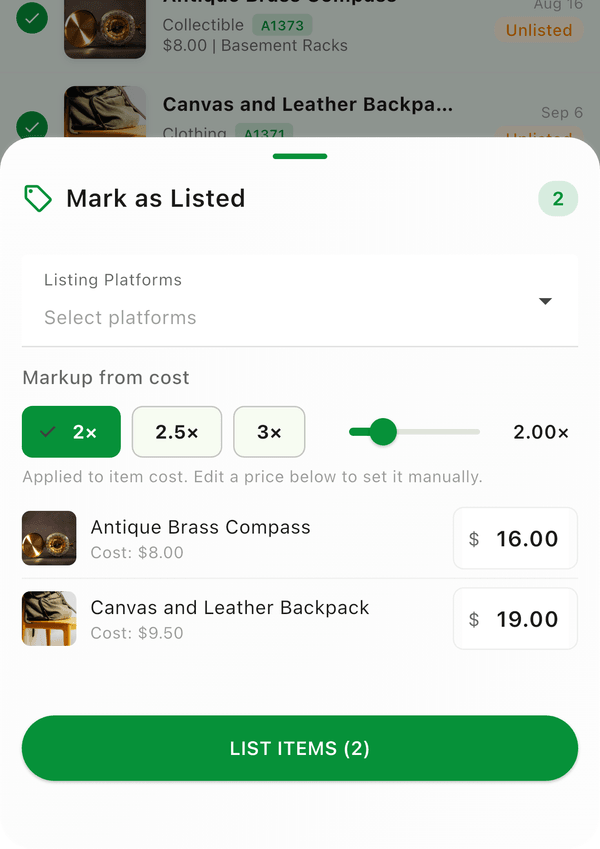
- Choose the listing platform for the batch (your default platform is pre-selected)
- Pick a markup from cost -- tap 2×, 2.5×, or 3×, or drag the slider for anything from 1× to 5×. Each item's price is calculated from its cost automatically
- Adjust any individual price by typing in its row -- prices you edit by hand stay put when you change the markup
- Items with no recorded cost are highlighted -- enter their prices manually before you can continue
- Tap List Items -- every item is marked Listed with its own price, platform, and today's date
- Only Unlisted items can be bulk-listed; Sold and Donated items are skipped.
- Bulk Mark as Listed needs app version 4.1.0 or newer.
Mark Multiple Items as Sold
Tap Mark Sold on the selection bar to sell several Listed items at once:
- Each row is pre-filled with its list price -- adjust any item that sold for a different amount (an item with no list price needs its sale price typed in before you can continue)
- Select the platform they sold on
- Tap Mark Sold
Only Listed items are eligible; anything else in the selection is skipped.
Bulk Delete
When you delete items in bulk:
- Select the items you want to delete
- Tap Edit Details, then tap Delete N items… at the bottom of the sheet
- Confirm with Delete in the Delete N Items? dialog
- Items are marked as Deleted and enter a 3-day recovery window -- a toast ("N deleted -- restorable for 3 days") offers Undo right away
- During the recovery window, you can restore items if needed
- After 3 days, items are permanently removed
Bulk Photo Upload
Add multiple items at once by uploading photos in bulk:
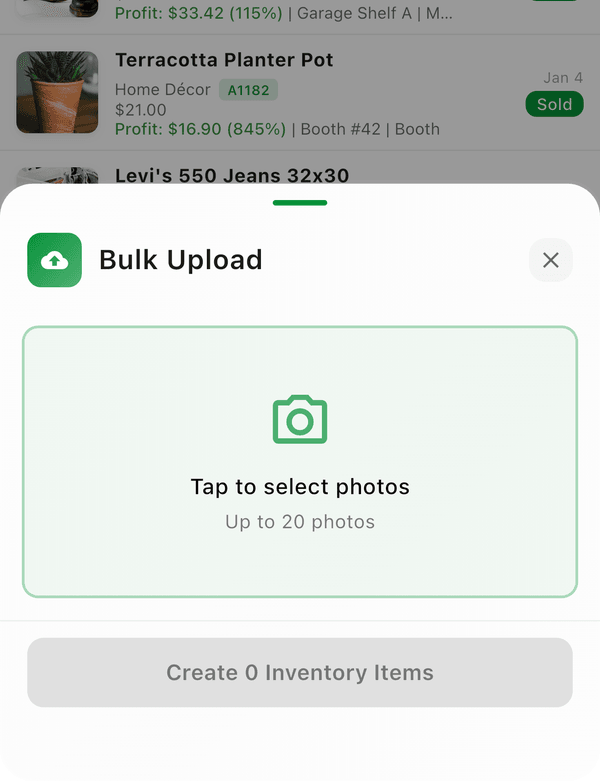
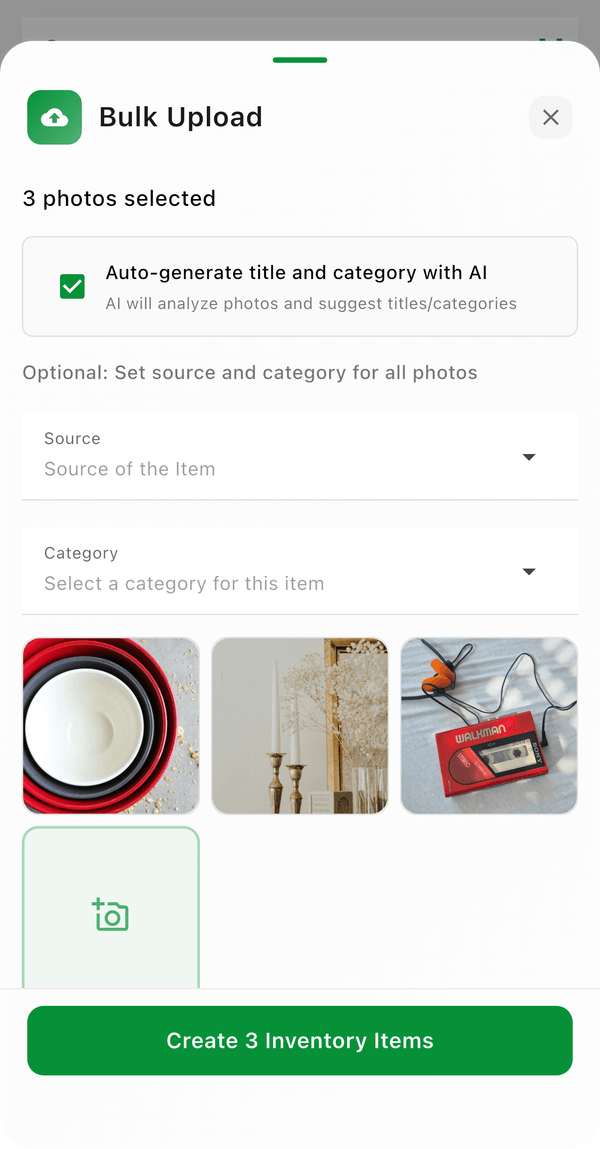
- From the Inventory screen, tap the add menu and select Add Multiple Photos -- this opens the Bulk Upload sheet
- Select up to 20 photos from your library per batch
- Choose a default source and category for all items (optional)
- Leave Auto-generate title and category with AI checked to have titles and categories suggested from the photos -- it's on by default, and Flippd remembers your choice
- Tap Upload -- Flippd creates a separate inventory item for each photo
This is the fastest way to add inventory after a sourcing trip.
Good to Know
- Use filters first to narrow down items, then select all matching results
- Bulk deleted items have a 3-day recovery window before permanent removal -- you can restore them during this period
- Mark Listed and Mark Sold on the selection bar change the status of many items at once, each with its own price
- Bulk photo upload with AI enabled can auto-fill titles and categories from your images