 Flippd Help
How do I manage my Flippd subscription on the web?
If you subscribed to Flippd at app.getflippd.com, your subscription is billed through Stripe and you manage it directly from inside the Flippd web app -- no need to leave for Apple or Google. Cancel, change plans, update your payment method, and download invoices all happen in the same place.
Viewing Your Subscription
- Sign in at app.getflippd.com
- Tap the gear icon (top right) to open Settings
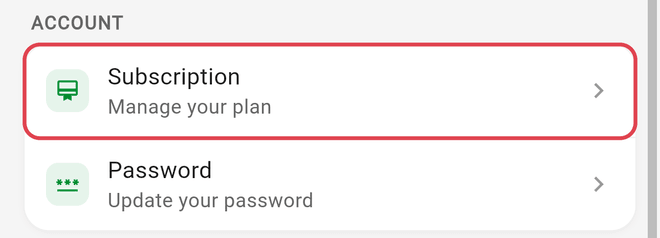
- Tap Subscription in the Account section
- You'll see your current plan (Pro Monthly or Pro Annual), its renewal date, and Billed through: Web
Upgrading or Downgrading
- In Settings > Subscription, tap Change Plan
- You'll be redirected to our billing portal
- Choose Update plan and pick the plan you want
- Confirm the change
- Upgrading takes effect immediately with prorated billing
- Downgrading takes effect at the end of your current billing period
Canceling Your Subscription
- In Settings > Subscription, tap Cancel Subscription (the red button at the bottom)
- Answer the short question about why you're cancelling and confirm
- You'll be redirected to our billing portal
- Confirm the cancellation in the portal
After canceling:
- You keep access until the end of your current billing period
- Your data is preserved -- nothing is deleted
- You can resubscribe at any time to regain access
- You revert to the free-tier features once the billing period ends
Updating Your Payment Method
- In Settings > Subscription, tap Change Plan
- In the billing portal, find Payment method and tap Add payment method or Update
- Enter your new card or update billing details
The new payment method is used at your next renewal. If a recent charge failed, the retry uses the updated card automatically.
Viewing or Downloading Invoices
- In Settings > Subscription, tap Change Plan
- In the billing portal, scroll to Invoice history
- Tap any invoice to view or download it as a PDF
Useful for expense records, accountant handoffs, or proof of subscription.
Requesting a Refund
Web refunds are handled by Flippd support, not the billing portal:
- Email support@getflippd.com with the email address on your subscription
- Tell us which charge you'd like reviewed and why
- We'll review the request and process eligible refunds through Stripe
We typically respond within 1-2 business days.
Subscription Bought on Mobile?
If you originally subscribed on iOS or Android, the web Subscription screen has no Cancel button. Instead it shows a Managed on App Store or Managed on Google Play row ("Change or cancel it there -- it stays active here") -- tap it to open that store's page. Your subscription stays active on the web in the meantime. Subscriptions can only be managed from the store that processed the original purchase:
- App Store purchases → apps.apple.com/account/subscriptions
- Google Play purchases → play.google.com/store/account/subscriptions
See the related guides for those stores at the bottom of this article.
Troubleshooting
"No billing account found"
If the billing portal says we can't find a billing account for you:
- Make sure you're signed in with the same email address you used to subscribe
- If you have multiple Flippd accounts, switch to the one that holds the subscription
- Email support@getflippd.com with your account email so we can look it up
No Cancel Button Even Though Pro Is Active
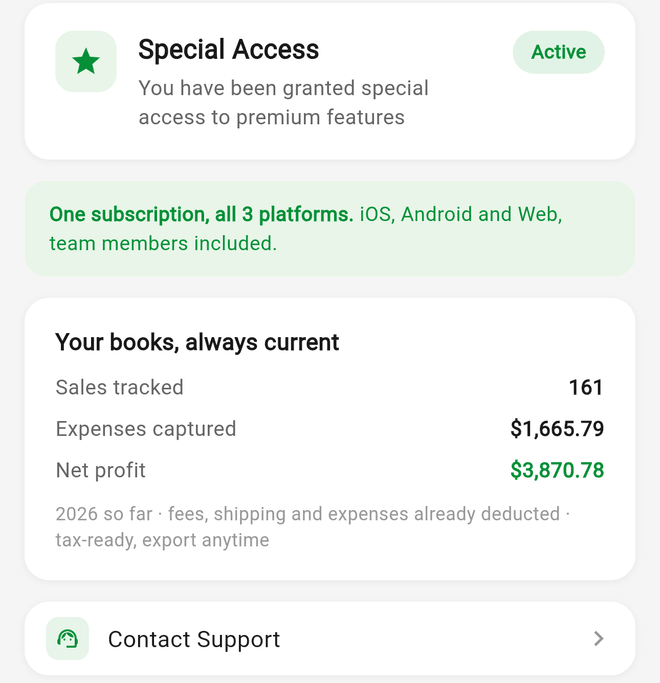
If your Pro access was granted by our team or through a promotion (not a normal paid subscription), the Subscription screen shows that instead of a Cancel button -- there's no billing record for the portal to open. In that case, email support@getflippd.com and we can adjust your access manually.
Charged After Canceling
Cancellation in the billing portal takes effect at the end of the current period. If you were charged right after canceling, it's likely the charge was already in flight before cancellation registered. Check your Invoice history in the portal -- the most recent invoice will show whether the charge is for the period before or after your cancellation date.
Good to Know
- Web pricing is $9.99/month or $99.99/year
- Web subscriptions are billed by Stripe -- charges on your statement appear as "FLIPPD" or "STRIPE*FLIPPD"
- Annual plans offer a discount compared to monthly billing
- Your data is shared across web, iOS, and Android -- canceling the web subscription doesn't delete anything on mobile, but it does end your paid access until you resubscribe
- You can also subscribe on web and use the app on mobile (or vice versa) -- one subscription covers all your devices on the same account