 Flippd Help
How do I manage my Flippd subscription through Google Play?
If you subscribed to Flippd through the Google Play Store on your Android device, Google handles all billing. You manage your subscription through Google Play's settings.
Viewing Your Subscription
- Open the Google Play Store app
- Tap your profile icon in the top right
- Tap Payments & subscriptions
- Tap Subscriptions
- Find Flippd in the list
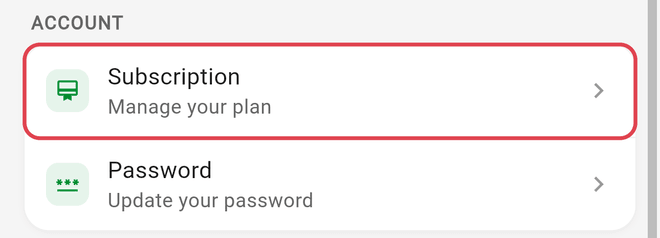
You can also see your current plan inside the app: open Settings (gear icon, top right) and tap Subscription in the Account section. The Subscription screen shows your plan, its renewal date, and Billed through: Google Play.
Upgrading or Downgrading
- Go to Google Play Store > Profile > Payments & subscriptions > Subscriptions > Flippd
- Tap Update or select the new plan
- Confirm the change
- Upgrading takes effect immediately with prorated billing
- Downgrading takes effect at the end of your current billing period
Canceling Your Subscription
You can start from inside Flippd: on Settings > Subscription, tap Cancel Subscription at the bottom, answer the short question about why you're leaving, and confirm. Flippd then opens Google Play's subscriptions page, where the cancellation is actually completed. Or go there directly:
- Go to Google Play Store > Profile > Payments & subscriptions > Subscriptions > Flippd
- Tap Cancel subscription
- Follow the prompts and confirm
After canceling:
- You keep access until the end of your current billing period
- Your data is preserved -- nothing is deleted
- You can resubscribe at any time
- You revert to the free tier features when the billing period ends
Requesting a Refund
Google handles refunds for Play Store purchases:
- Go to play.google.com/store/account/orderhistory
- Find the Flippd charge
- Tap Request a refund or Report a problem
- Follow the prompts
Google typically processes refund requests within a few business days.
Sharing on Android
Google Play does not support sharing subscriptions through Family Library. Unlike Apple Family Sharing, each Android user needs their own Flippd subscription for their own account -- Family Library only works for one-time app purchases, not subscriptions. The exception: people you invite to your account work under your subscription on any platform, no subscription of their own needed.
Troubleshooting
Subscription Not Recognized
If Flippd doesn't recognize your subscription:
- Make sure you're signed into Flippd with the same Google account used to purchase
- Go to Settings > Subscription and tap Restore Purchases
- Clear the Google Play Store cache: Settings > Apps > Google Play Store > Clear Cache
- If still not working, sign out of Flippd and sign back in
Payment Failed
If Google couldn't process your payment:
- Open Google Play Store > Profile > Payments & subscriptions > Payment methods
- Verify your payment method is current
- Google will retry the payment automatically
- Your subscription stays active during a short grace period -- Flippd shows a payment-issue banner on the Subscription screen while this is happening
Switching Devices
Your subscription is tied to your Google account, not your device. Sign into any Android device with the same Google account and your subscription follows you. You can also use the web version or the iOS app with the same Flippd account -- one subscription covers all platforms, so just sign in; don't subscribe again.
Good to Know
- Google takes a 15-30% commission on Play Store subscriptions
- Annual plans offer a discount compared to monthly billing
- Google sends receipt emails for each charge -- check your Google account email
- You can also manage subscriptions at play.google.com/store/account/subscriptions
- Uninstalling the app does NOT cancel your subscription -- you must cancel through Google Play