 Flippd Help
How do I manage, upgrade, or cancel my subscription?
Your Flippd subscription is managed through the App Store (iOS) or Google Play (Android) or via the web. Here's how to change or cancel your plan.
In the App
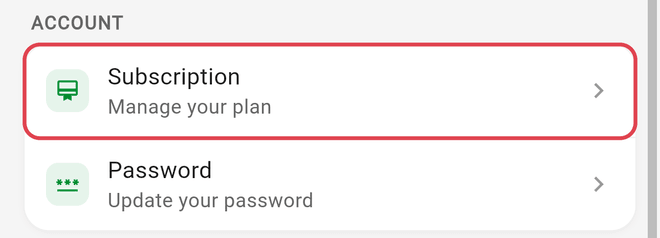
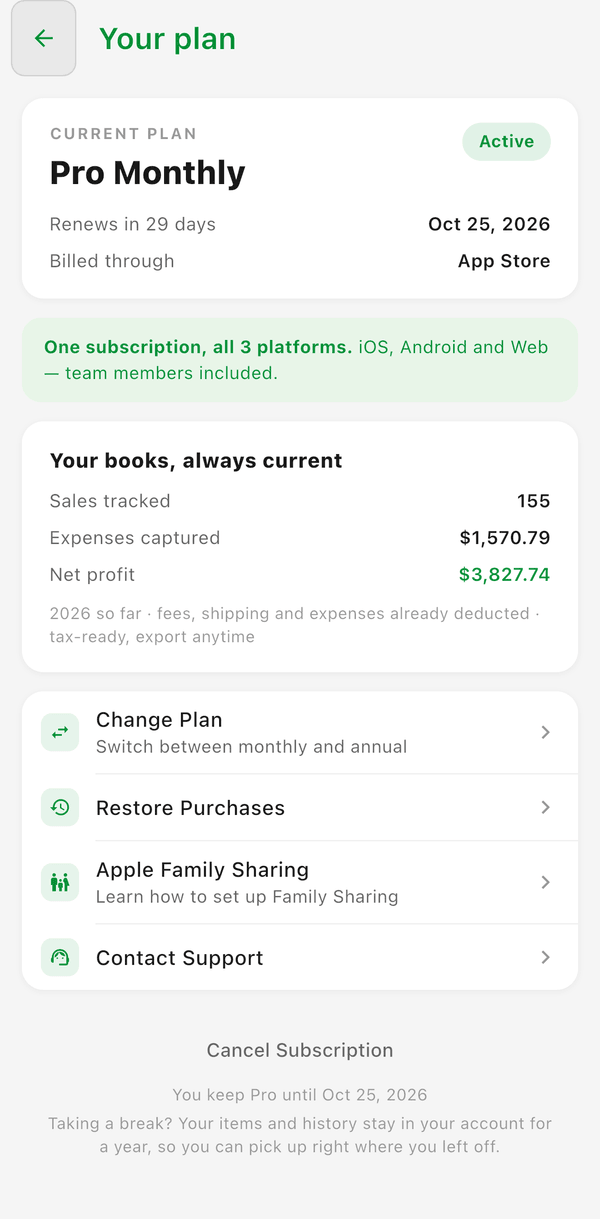
Open Settings (gear icon, top right) and tap Subscription (the tile labeled "Manage your plan"). The Subscription screen shows your plan, its renewal date, and where it is billed through, and it is the starting point on every platform:
- Cancel Subscription (at the bottom) starts the cancellation in the app -- you're asked why you're leaving, then confirm -- and then hands you off to the App Store, Google Play, or our web billing portal to finish. The cancellation is completed there, not in Flippd.
- Upgrade to Pro opens the in-app paywall if you're on the free plan.
- If you're a member of someone else's account, this screen shows Managed by the account owner -- only the owner can view or change the plan.
iOS Users
- Open your iPhone Settings
- Tap your name at the top
- Tap Subscriptions
- Find Flippd
- Choose to upgrade, downgrade, or cancel
Android Users
- Open the Google Play Store
- Tap Menu > Subscriptions
- Find Flippd
- Choose to upgrade, downgrade, or cancel
Web Users
If you subscribed at app.getflippd.com, you can cancel directly from the web app -- no need to leave to Apple or Google.
- Sign in at app.getflippd.com
- Tap the gear icon (top right) to open Settings
- Tap Subscription
- Click Cancel Subscription at the bottom of the screen
- Answer the short question about why you're cancelling and confirm
- You'll be redirected to our billing portal where you can confirm the cancellation, update your payment method, or view past invoices
If you originally subscribed on iOS or Android (not on the web), the web Subscription screen has no Cancel button. Instead it shows a Managed on App Store or Managed on Google Play row ("Change or cancel it there -- it stays active here") -- tap it to open that store's subscriptions page. Subscriptions can only be managed from the store that processed the original purchase.
What Happens When You Cancel
- Your access continues until the end of your current billing period
- Your data is saved and will be there if you resubscribe
- You can export your data before or after canceling
Subscription Not Working?
If Flippd doesn't recognize your subscription or you're stuck on the free tier:
- Restore Purchases -- Go to Settings > Subscription and tap Restore Purchases (iOS and Android only -- the row isn't shown on the web). This checks with Apple or Google to verify your subscription status
- Check your email -- Make sure you're signed into Flippd with the same Apple ID or Google account used to purchase the subscription
- Subscribe through device Settings -- If the in-app purchase isn't working, you can subscribe directly:
- iPhone: Go to Settings > [Your Name] > Subscriptions > search for Flippd
- Android: Go to Google Play Store > Profile > Payments & subscriptions > Subscriptions
- Try the web version -- If you have an active subscription on iOS or Android, you can also use the web version at app.getflippd.com with the same account
- Update the app -- Make sure you're running the latest version from the App Store or Google Play
If none of these work, contact support@getflippd.com with the email address you signed up with and we can review your account.
Good to Know
- One subscription covers iOS, Android, and the web -- if you switch devices, just sign in; don't subscribe again
- Cancellation takes effect at the end of your billing cycle -- you won't lose access immediately
- For Apple and Google subscriptions, refunds are handled by Apple and Google -- Flippd cannot process those refunds. For web subscriptions, email support@getflippd.com and we'll review the request
- If you switch from monthly to yearly, the change takes effect at the next billing date
Related Articles
- How do I manage my Flippd subscription on the web?
- How do I manage my Flippd subscription through Apple?
- How do I manage my Flippd subscription through Google Play?
- What subscription plans does Flippd offer?
- How do I export my inventory and sales data?
- How do I delete my account, and what happens to my data?