 Flippd Help
How do I navigate the app?
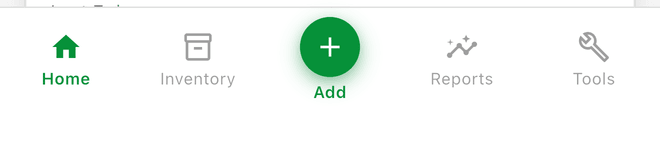
On your phone the bottom bar has five sections -- Home, Inventory, Add, Reports, and Tools -- with everything else one tap away on the Tools screen. Settings opens from the gear icon in the header.
Bottom Navigation
- Home -- Your dashboard with inventory counters, sales chart, sell-through rate, and your Coach
- Inventory -- Browse, search, and manage all your items
- Add -- The green button in the middle: add a new item from any tab
- Reports -- View sales reports, analytics, and year-over-year comparisons
- Tools -- Expenses, mileage, goals, storage locations, labels, and every other feature
On tablets and desktop (including the web version) the bar also gets Expenses and Mileage tabs; on phones those live on the Tools screen.
Adding Items
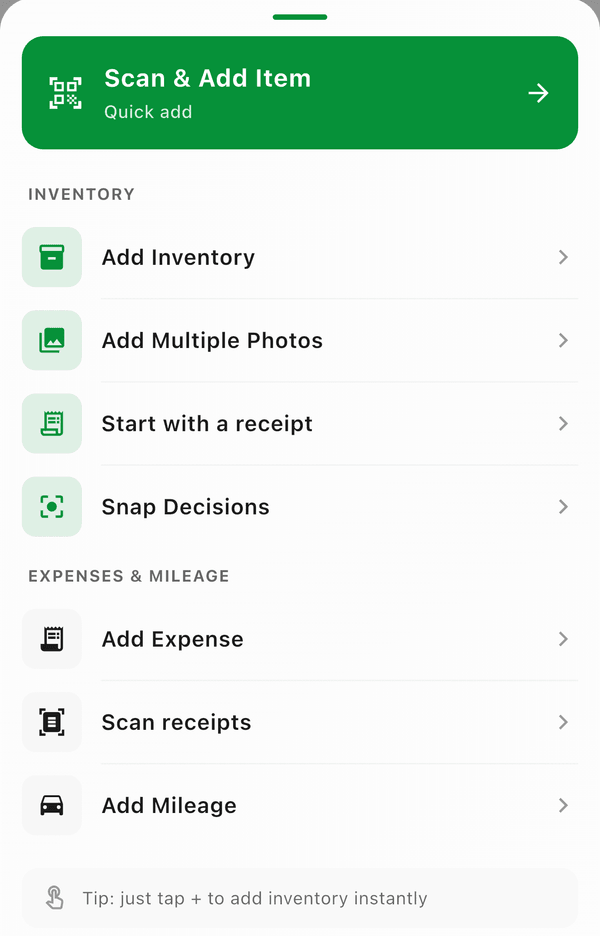
Tap the green Add button in the bottom bar from any tab to quickly add a new item.
You can also long-press (hold down your finger on) the Add button for more options: Scan & Add Item, Add Inventory, Add Multiple Photos, Start with a receipt, Add Expense, and Add Mileage.
Tools Menu
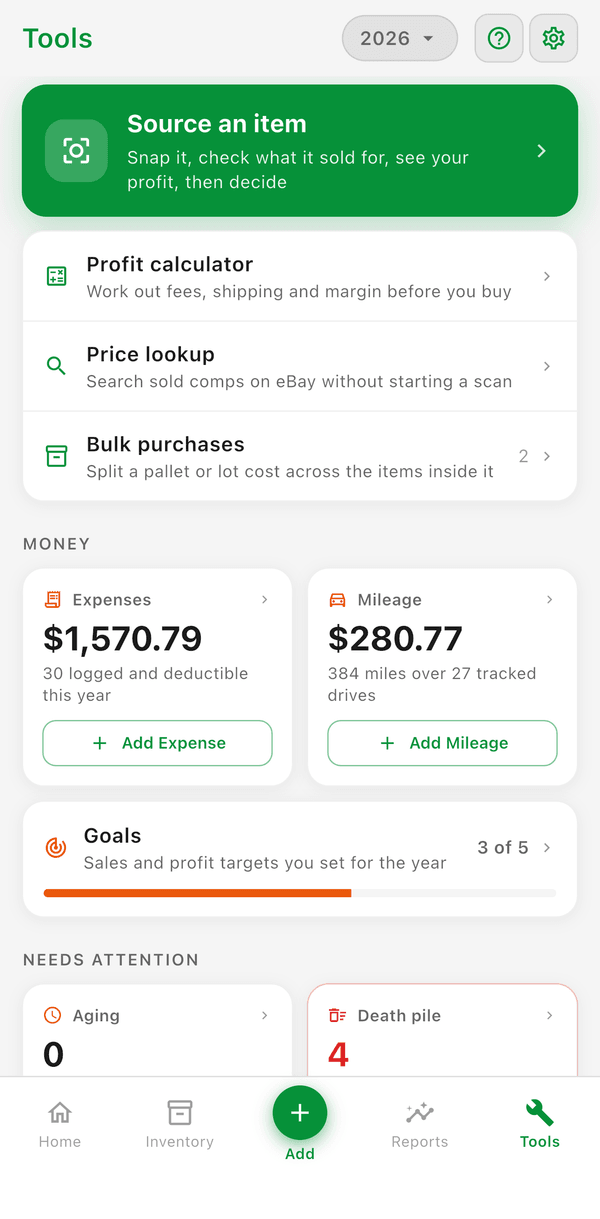
Tap the Tools tab to access additional features. There's a Search tools… box at the top if you know what you're looking for.
- Profit calculator -- Check profitability before buying
- Price lookup -- Search current eBay listings for an item, with a link to sold results (opens the Price Research screen)
- Bulk purchases -- Split a pallet or lot cost across the items inside it
- Expenses -- Track business expenses and receipts
- Mileage -- Log business trips and mileage for tax deductions
- Goals -- Set and track reselling goals
- Storage locations -- Organize items by where they're stored
- Aging -- Listed items that still haven't sold after a set number of days
- Death pile -- Unlisted items acquired 30 or more days ago
- Records to fix -- Scans your data for duplicates, missing costs, bad dates, and more
- Storefronts -- Public catalogs you can share at in-person sales
- Labels -- Create and print labels with QR codes
- Proof of purchase -- Receipts kept on file to back up your deductions (shown when receipt linking is turned on)
- Import / export -- Import CSV or export your data
Settings
Settings isn't on the Tools screen. Tap the gear icon in the header to open your account, subscription, language, business profile, and customization options.
Good to Know
- Tap any inventory counter on the Home dashboard to jump to that filtered view
- Use the search bar in Inventory to find items by title, notes, stock number, storage location, or barcode
- Reports has Daily, Weekly, Monthly, YTD, and Compare views