 Flippd Help
What do the numbers on my Home dashboard mean?
Your Home dashboard shows a snapshot of your reselling business at a glance. Here's what each section means.
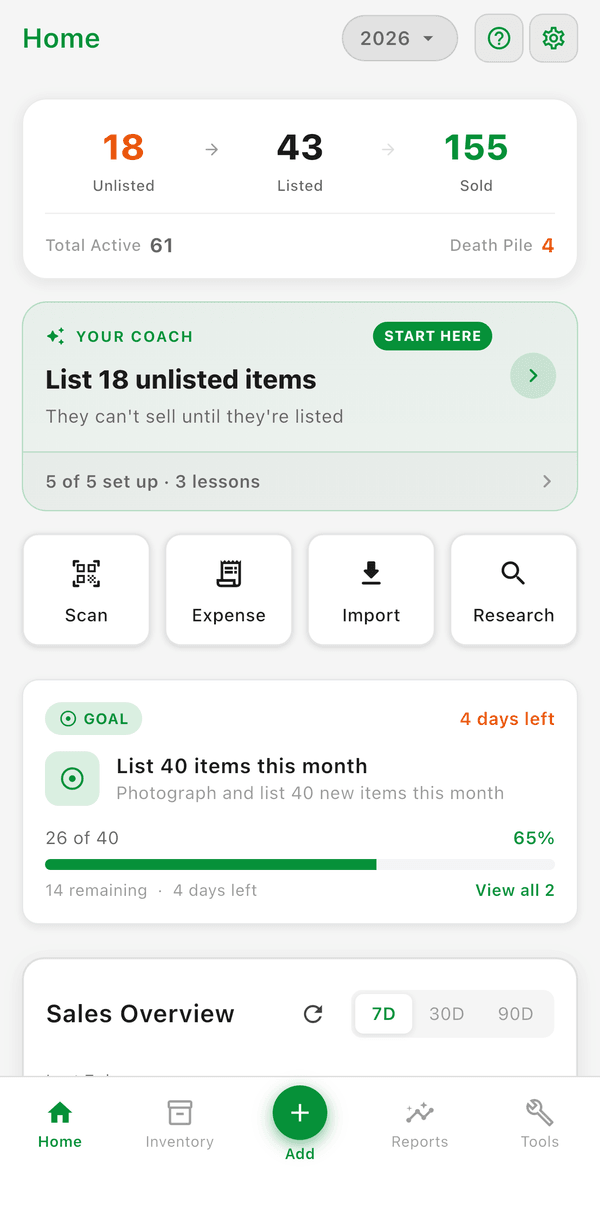
Inventory Counters
At the top of the dashboard, the Inventory Pipeline card shows counters for:
- Total Active -- Total items currently in your inventory (unlisted + listed)
- Unlisted -- Items in your inventory that aren't listed for sale yet
- Listed -- Items actively listed on a selling platform
- Sold -- Total items you've sold
Tap any counter to jump directly to that filtered view in your inventory.
Death Pile Counter
The Death Pile counter shows Unlisted items acquired 30 or more days ago -- it's measured from each item's Date Acquired. These need attention -- consider listing them, repricing, or donating. Tap the counter to see all of them. If you'd rather not see it, turn it off under Settings > Feature Visibility.
Sales Chart
The sales chart shows your sales over the last 7, 30, or 90 days -- tap the period to switch. Use it to spot patterns in your selling activity.
Sell-Through Rate
Sell-through rate is the share of everything you've tracked that has sold: sold items divided by all your unlisted, listed, and sold items. The card shows whether you're in the Low, Optimal, or High band -- the bands follow your Coach pace -- and your Seller level (Collecting, Selling, or Pro).
Your Coach and Quick Actions
The Your Coach card leads with today's top action from your nightly briefing, and the goal card shows your most urgent goal. Below the pipeline card, quick action chips give one-tap access to Scan, Expense, Import, and Research (plus Mileage and Goals on wider screens).
Good to Know
- All numbers update in real time as you add, list, and sell items
- The dashboard is your starting point -- it links to every major section of the app
- Numbers update automatically as you add items, record sales, and track expenses