 Flippd Help
How do I record several items that sold together as one sale?
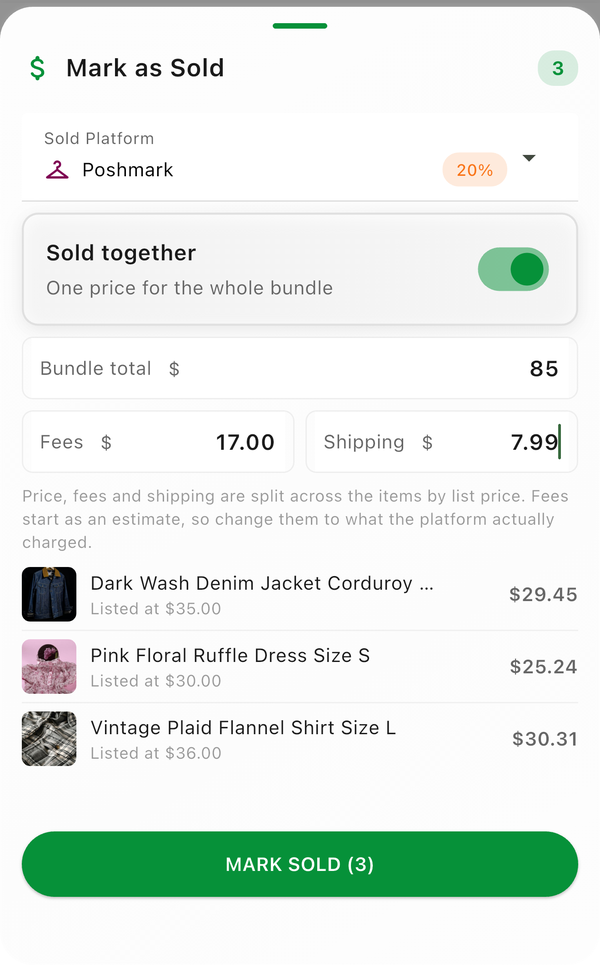
Select the items on the Inventory screen, tap Mark Sold, and turn on Sold together. You enter one total for the whole sale, plus fees and shipping once, and Flippd splits all three across the items so each one carries its own share of the profit. Available since version 4.12.0.
Step-by-Step
- Open the Inventory screen and tap the checklist icon to enter bulk edit mode
- Select the items that sold in the one sale (they need to be Listed)
- Tap Mark Sold
- Turn on Sold together ("One price for the whole bundle")
- Enter the total the buyer paid, the fees and the shipping for the whole sale
- Pick the platform it sold on and confirm
How the Split Works
Flippd divides the total, the fees and the shipping across the items in proportion to each item's list price (times its quantity). An item listed at 30 in a bundle with one listed at 10 gets three quarters of the money and three quarters of the fees. The shares are rounded to the cent and always add back to exactly what you typed.
If any item in the selection has no list price, the split is by quantity instead, so every unit gets an equal share.
The fee field prefills with the platform's estimated fee on the whole total. Type your own fee to override it.
What You See Afterwards
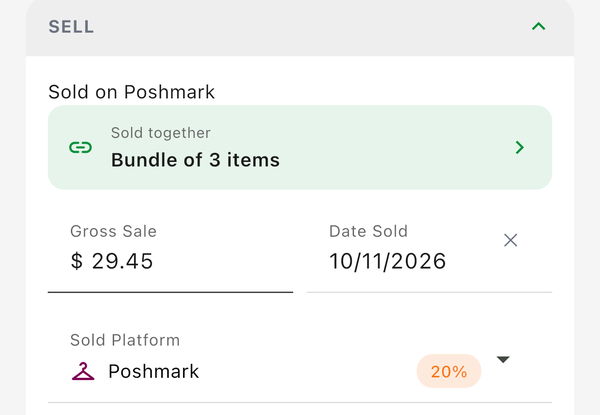
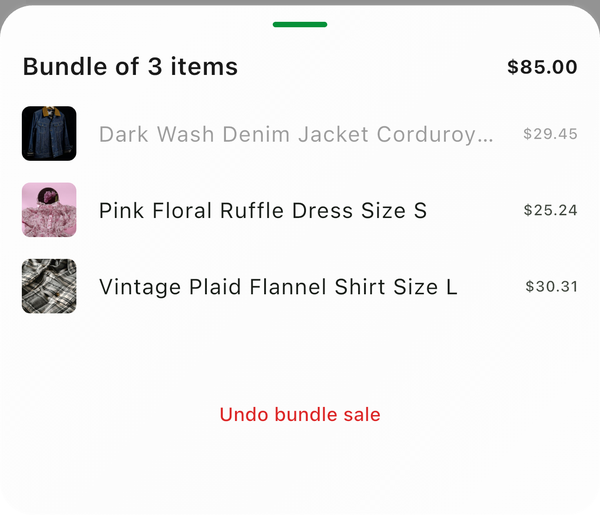
Each item is Sold with its own share of the sale, so profit, ROI and reports work exactly as for a single sale. Open any of them and the Sold section shows a Sold together · Bundle of N items banner. Tap it to see every item in the bundle with its sale price and the total.
Undoing a Bundle Sale
Open any item in the bundle, tap the Sold together banner, then Undo bundle sale and confirm. Every item still in the bundle goes back to Listed, and their sale price, fees and shipping are cleared.
An item you un-sold on its own, or sold again separately, has already left the bundle and is not touched by the undo.
Good to Know
- Sold together is not the same as a Bundle. A Bundle (off by default under Feature Visibility) combines items into one listing before you sell. Sold together records a sale of items that were listed separately and happened to sell to one buyer. See How do bundles work and when should I use them?.
- Leave Sold together off to sell several items at once at their own prices, each with its own fee. See How do I edit multiple items at once with bulk actions?.
- Every selected item is sold at its full quantity. To sell part of a multi-quantity item, open it and use Mark as Sold on its own. See How do I record a sale and track my profit?.
- Shipping of 0 writes no shipping on the items.