 Flippd Help
How do I scan a barcode to quickly add items to inventory?
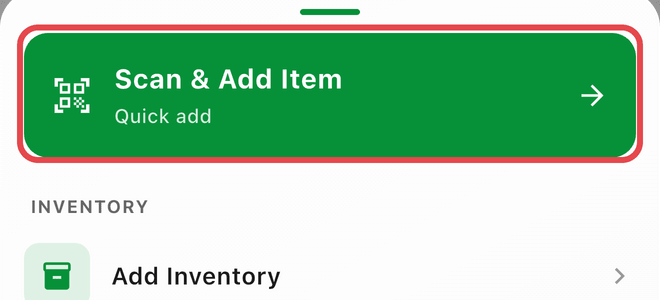
Use Scan & Add to scan a product barcode, automatically look up the product details (title, brand, category), and add it to your inventory in seconds. No manual data entry required.
How It Works
When you scan a barcode, Flippd looks up the product in a database of millions of products. If found, the title, brand, and category are pre-filled for you. You can edit any field before saving, then add the cost and quantity.
Getting Started
- Tap the + button in the bottom navigation
- Tap Scan & Add Item
- Point your camera at the product barcode
- The product details load automatically
- Review the pre-filled title, category, and add your cost
- Tap Add to Inventory
After saving, you can immediately scan another item -- the scanner reopens automatically for fast batch entry.
Where You Can Scan & Add
Scan & Add is available in several places:
- Add Menu -- Tap the + button and select Scan & Add Item
- Inventory Screen -- When you scan a barcode that doesn't match an existing item, Flippd automatically offers to add it
- Bulk Purchases -- Scan items directly into a bulk purchase to track costs together
What Gets Looked Up
When a barcode is found in the product database, Flippd fills in:
- Title -- The product name
- Brand -- The manufacturer or brand
- Category -- Matched to your configured categories (defaults to "Other" if no match)
- Product Image -- Downloaded and saved to your item automatically
All fields are editable before you save.
If the Product Isn't Found
If the barcode isn't in the database, you'll see a "not found" message. You can still:
- Enter the title, cost, and quantity manually
- Tap Scan Another to try a different item
- The barcode is still saved to the item for future scanning
If you cancel the not-found sheet from the Inventory screen, the scanned barcode is dropped into the Inventory search bar instead, so you can look for it manually.
Good to Know
- Works with standard UPC, EAN, and ISBN barcodes (8-14 digits)
- Product lookups are cached -- scanning the same barcode again is instant
- New (never-seen) barcode lookups are capped at 100 per day; cached lookups don't count toward the cap
- The product image is saved to your account storage, not linked to an external URL
- Use the flash toggle in the scanner for low-light conditions
- Cost is entered per item, not total cost
- Items are created with status "Unlisted" and today's date as the acquisition date