 Flippd Help
How do I use barcodes to tag and find inventory items?
Use barcodes to tag items with their product barcode and quickly find them later by scanning. Enable the barcode field in your Inventory Preferences, then scan or type a barcode on any item.
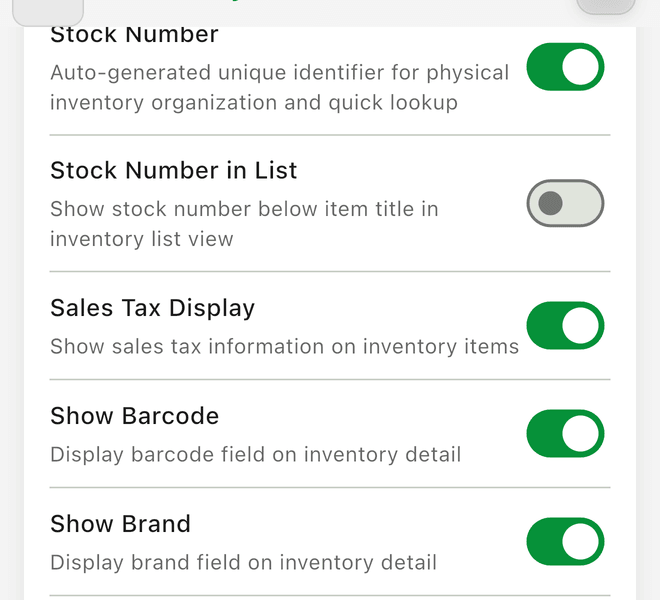
Enable the Feature
- Go to Settings (tap the gear icon)
- Tap Inventory Preferences
- Toggle Show Barcode on
The barcode field now appears on all item detail screens.
Associate a Barcode with an Item
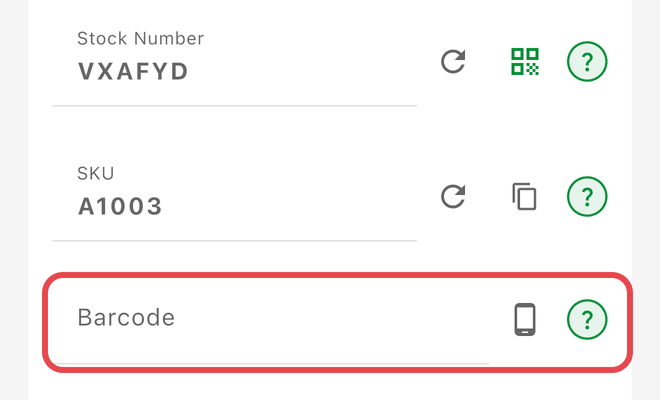
- Open the item you want to tag
- Tap the Barcode field
- Scan the barcode with your camera, or type it in manually
- The barcode is saved to the item automatically
Find an Item by Barcode
- Open the Inventory tab
- Tap the scanner icon
- Point your camera at the barcode
- The matching item opens automatically

Good to Know
- Use the flash toggle in the scanner for low-light conditions
- The barcode can be copied to your clipboard from the item detail screen
- Works with standard barcode formats including UPC, EAN, and other common types
- The barcode field uses a monospace font for easy readability
- Barcodes are product identifiers (printed on the item by the manufacturer) -- they are different from QR codes, which Flippd generates for deep linking to items and storage locations