 Flippd Help
How do I use QR codes to find items and scan storage locations?
Each item and storage location has a unique QR code. Scan it with Flippd to instantly open the item details or see all items in a storage location.
QR Codes for Items
Each item can have a QR code printed on its label. When scanned, it:
- Opens the item details in Flippd
- Shows the current price and status
- Lets you quickly update the item
This is useful for quickly checking prices during pop-up sales or finding an item in your system.
QR Codes for Storage Locations
Storage locations also have QR codes. When scanned:
- You instantly see all items stored in that location
- Great for auditing inventory by location
- Helps when you need to find a specific item fast
Printing a Storage QR Code
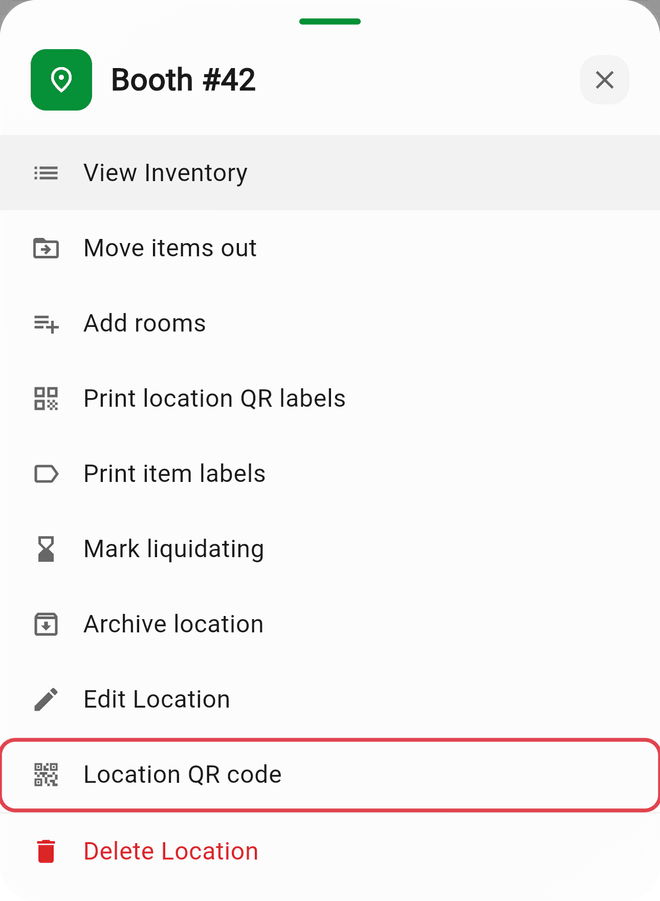
Every location already has a QR code -- there's nothing to generate.
- Go to Tools > Storage locations
- Open a location's menu and tap Location QR code
- Print and attach to the shelf, bin, or container
Scanning with the Camera

- Open the Inventory tab
- Tap the Scan QR Code or Barcode icon
- Point your camera at the QR code
- The item or storage location opens automatically
The same scanner also reads a shopper's My Picks checkout code from your Storefront, so you can review their picks and complete the sale. See What are Storefronts and how do I use them?
Using a Handheld (Hardware) QR Scanner
Prefer a dedicated barcode/QR scanner (like an Eyoyo, Netum, or Zebra handheld) instead of your device camera? Flippd works with these too -- and it works the same way on mobile and web.
Most handheld scanners connect over Bluetooth or USB and act like a keyboard: whatever they scan is "typed" into whichever field is selected. To use one with Flippd:
- Pair or plug in your scanner and make sure it's in keyboard (HID) mode -- this is the default for most models
- Open the Inventory tab and tap the search box so it's active
- Scan an item's or storage location's Flippd QR code
- Flippd recognizes the code and opens the item (or shows the storage location) automatically -- no camera needed
This lets you keep your phone, tablet, or computer on a stand and scan items hands-free.
What kind of scanner works?
Almost any modern handheld scanner works, as long as:
- It's a 2D imager (reads QR codes) -- older 1D laser scanners only read straight-line barcodes and can't read a QR code
- It's set to keyboard (HID) mode -- some scanners default to a different mode; check the manual for a "keyboard" or "HID" setup barcode
- You tap the search box first so the scan lands in the right place
- Its keyboard layout is set to US/QWERTY -- a mismatched layout can garble the link's
:and/characters
A trailing Enter or Tab after each scan (a common scanner setting) is fine and won't cause any problems.
QR Codes vs. Barcodes
Flippd supports both QR codes and barcodes, but they serve different purposes:
- QR codes are generated by Flippd and contain links to items or storage locations. They're used for internal navigation within the app.
- Barcodes are product identifiers printed on items by the manufacturer (UPC, EAN, etc.). They're used to tag items with their original product barcode for identification.
You can use both on the same item -- a QR code on the label for quick access, and a barcode to identify the product.
Good to Know
- QR codes are included automatically when you print labels with the QR option enabled
- Scanning works on the web version too -- use a handheld (USB/Bluetooth) QR scanner into the search box, or your browser's camera where it's supported
- Storage QR codes encode
https://app.getflippd.com/storage/{location ID} - Item QR codes encode
https://app.getflippd.com/inventory/{stockNumber} - Printed codes never change format, so labels you printed in the past keep working