 Flippd Help
Why doesn't my Bluetooth label printer show up when I print?
Many small Bluetooth label printers (NIIMBOT, Phomemo, Marklife, and similar brands) can only print from their own companion app. They don't support standard phone printing (AirPrint on iOS or Mopria on Android), so they will never appear in your phone's printer list — in Flippd or any other app.
You can still print Flippd labels on these printers by sharing the label as an image to the printer's app.
Step-by-Step
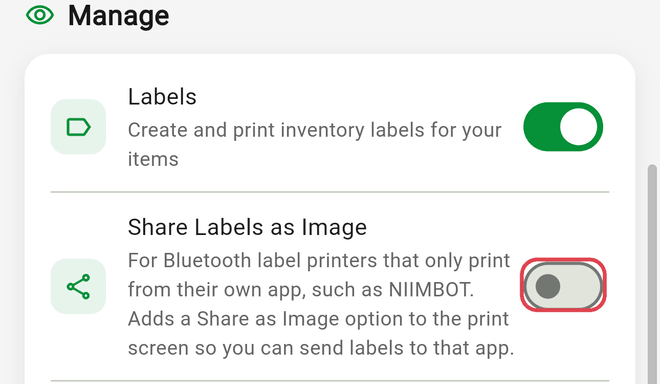
- Turn on the feature: go to Settings > Feature Visibility and enable Share Labels as Image
- Go to Tools > Labels and select the items you want to label
- Tap Print Labels, then tap Share as Image (this button is hidden until you turn on Share Labels as Image in step 1)
- In the share sheet, save the image to your photos (on iPhone tap Save Image; on Android use Google Photos or your gallery app)
- Open your printer's app (for example, the NIIMBOT app) and connect to your printer
- Create a new label and insert the saved image from your photo gallery
- Print from the printer's app
Good to Know
- Most printer apps don't accept files shared directly from other apps, which is why the label is saved to your photos first — that step is a limitation of the printer's app, not Flippd
- Use a label template that matches your printer's tape size so the image fits the label without stretching -- pick a template on one of the small thermal formats (Thermal 30x40mm, Thermal 40x30mm, or Polono 220M (50x30mm)) or set a custom size (see How do I customize my label templates?)
- Printers that support standard printing — most Wi-Fi and desktop label printers like Rollo, Brother, or DYMO network models — show up directly in the print dialog, so you can just tap Print Labels as usual
- A direct Bluetooth connection from Flippd isn't available because each printer brand uses its own proprietary connection that only its companion app understands