 Flippd Help
How do I add my business logo and profile (for labels and invoices)?
Your Business Profile is where you add your company logo and business details. Your logo appears automatically on invoices, and can be added to your printed labels. Set it up under Settings > Business Profile.
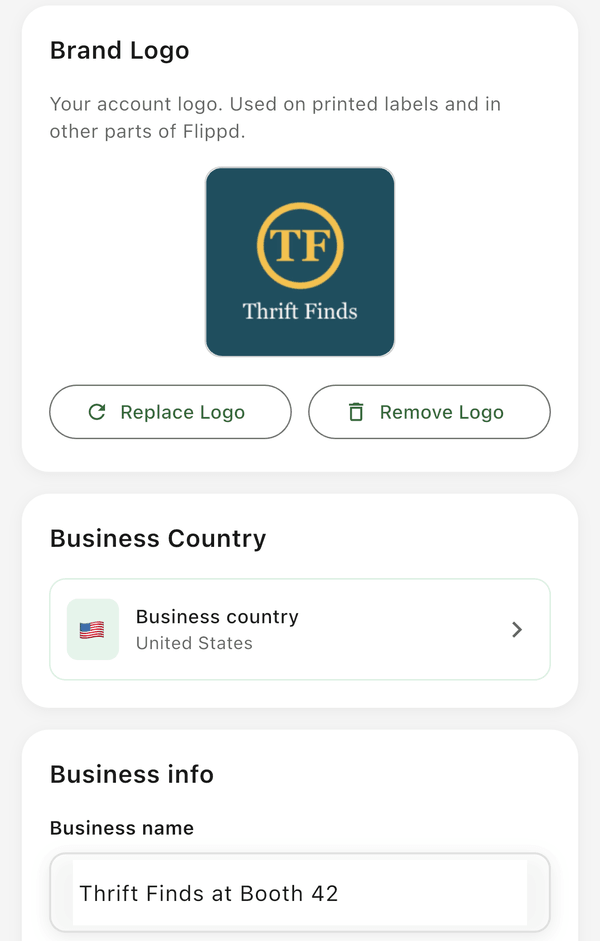
Where to Find It
- Tap the gear icon in the top right to open Settings
- Tap Business Profile (the tile labeled "Logo, business info, business type")
Upload Your Logo
- In Settings > Business Profile, find the Brand Logo section
- Tap the logo box and choose Upload Logo
- Pick an image from your Photo Library or take one with your Camera
- Your logo saves automatically -- use Replace Logo or Remove Logo to change it later
Logo requirements:
- Format: PNG or JPEG
- Size: under 5 MB
- A square image works best
Your Logo on Invoices
Once uploaded, your logo appears automatically on every invoice you generate -- there are no extra steps. The invoice header also shows your business name and address (if you've added them) and your saved payment methods, so buyers know who the invoice is from and how to pay.
To create an invoice, open a sold item, tap the ... (more options) menu, and choose Invoice Buyer.
Your Logo on Labels
On labels, your logo is opt-in -- it doesn't appear until you add a Logo element to your label template, so you control exactly where it shows:
- Go to Tools > Labels and open or create a template in the label editor
- Add the Logo element, then position and resize it where you want
- Save the template -- your uploaded logo now prints on labels that use it
If you haven't uploaded a logo yet, the Logo element shows a placeholder until you add one.
What Else Is in Your Business Profile
Every field is optional (except Business Country) and helps personalize your invoices and reports:
- Brand Logo -- your company logo
- Business Info -- business name and address (shown on invoices)
- Business Country -- sets your currency and tax formatting (saves automatically)
- Business Type -- Reseller, Booth vendor, Retail store, Estate sales, Hobbyist, or Other
- Items Sold Per Year -- your selling volume
- Selling pace -- the day counts your Coach uses to decide when an item needs a price adjustment or a deep cut. It opens its own sheet and saves on its own.
- Payment Methods -- Zelle, Venmo, PayPal, Cash App, wire instructions, or other (shown on invoices). This section also has an Invoice footer (optional) field -- leave it blank to use the default Flippd footer.
Tap Save after editing your business name, address, type, or items per year. Business Country, selling pace, and payment methods save as you go.
Good to Know
- Business Profile is free and available on web, iOS, and Android
- Your logo shows on invoices automatically, but on labels only after you add a Logo element to the template
- Your logo and details sync to your account across all your devices
- Replacing your logo updates it everywhere it's used