 Flippd Help
How do I make Flippd classify my regular trips automatically?
Open the Mileage tab, tap Manage on the tracking card, then Auto-classify rules (on the web version, tap the gear icon above the mileage list, then Auto-classify rules). Three kinds of rules classify trips the moment they save: a Work hours schedule, Saved places you toggle on, and Frequent routes Flippd learns from drives you classify the same way. Matching trips are added to business mileage without you touching them.
Step-by-Step
- Open the Mileage tab
- Tap Manage on the tracking card, then Auto-classify rules. On the web version, tap the gear icon above the mileage list instead
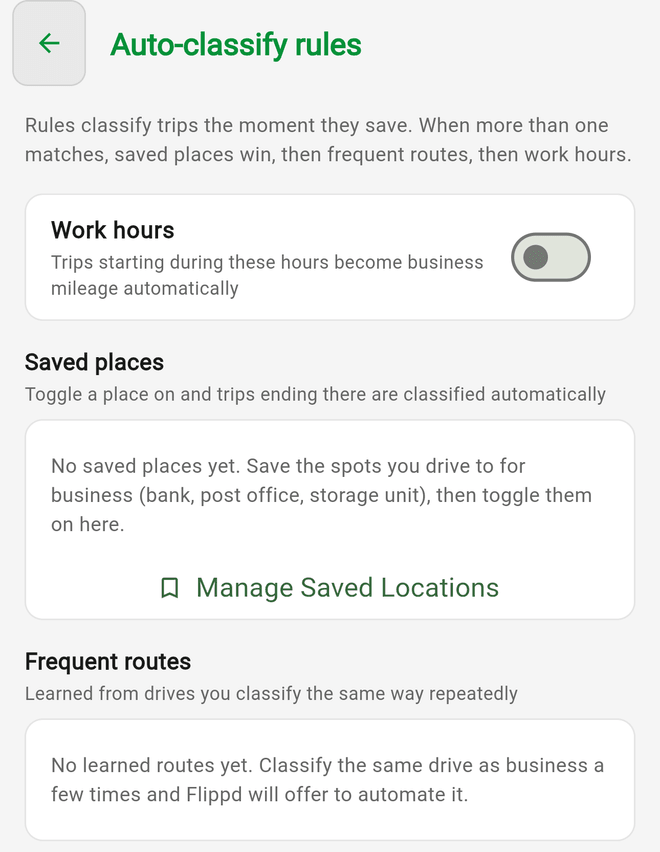
- Set up Work hours -- turn on the switch, tap the weekday chips you work, set Start and End times, then under Classify matching trips as pick Sourcing, Shipping, Supplies, or Banking. Trips that start inside this window become business mileage. The default schedule is Monday to Friday, 8:00 AM to 6:00 PM, classified as Sourcing
- Turn on Saved places -- every place you've saved (except Home) appears with a switch. Toggle a place on and trips ending there are classified automatically; the row shows the type it will get, for example Trips ending here → Sourcing. Tap Manage Saved Locations to add more places, or turn on Auto-classify as business when you save a new one
- Accept Frequent routes -- after you've classified the same drive as business three times, Flippd asks Always classify this route? Tap Auto-classify and you'll see Route rule saved — future trips classify automatically. The route then appears in this list as Start → End; tap the trash icon to remove it
Good to Know
- When more than one rule matches, saved places win, then frequent routes, then work hours
- Rules run when a tracked trip saves, whether you recorded it in Manual or Automatic tracking mode. Trips already in your log aren't reclassified -- classify those yourself
- Auto-classified trips skip the Trip saved -- tap to classify notification, since there's nothing left to do
- Home never auto-classifies. The return leg of every outing ends there, so the toggle isn't offered for your Home location
- The trip type a saved place assigns follows the place type you chose when saving it -- a Shipping place classifies trips as Shipping, and most other places classify as Sourcing
- A frequent-route rule matches when both the start and end of a trip are within about 300 meters of the learned route. Route rules are stored on your phone, like the trips they act on
- Your work-hours schedule is saved to your account, so it follows you across devices. A window that ends after midnight (for example 8:00 PM to 4:00 AM) works as an overnight shift
- At least one weekday must stay selected in the work-hours schedule
- If you've reached the free plan's mileage limit, the trip still saves but stays unclassified until you upgrade or classify it by hand
- The Auto-classify rules screen is also reachable from Manage > Tracking mode at the bottom of the sheet