 Flippd Help
How do I sell part of a multi-quantity item (partial sales)?
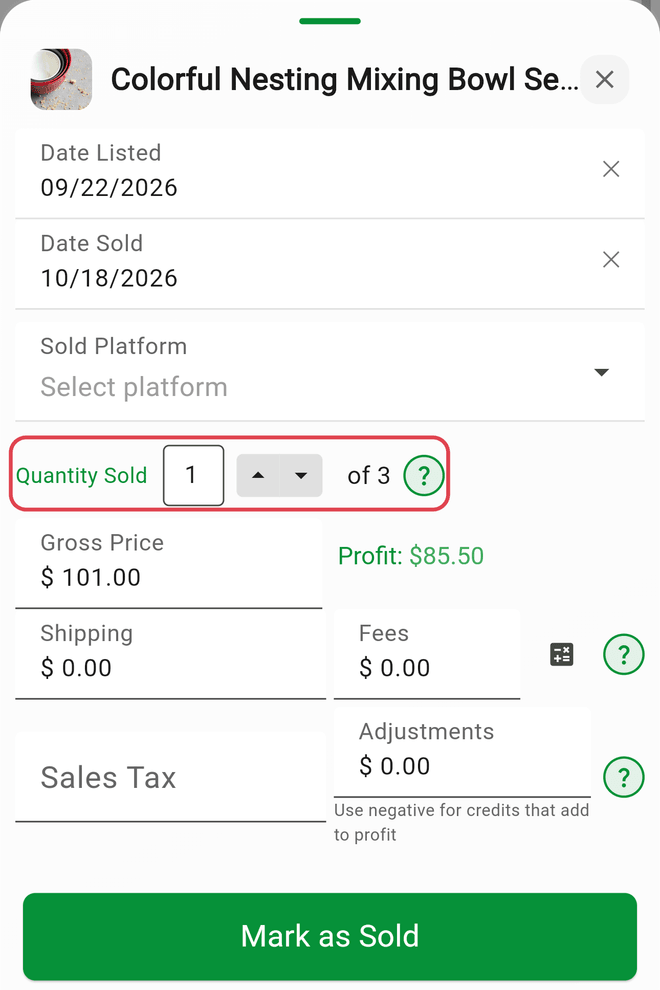
When an item has a quantity above 1, the Mark as Sold form shows a Quantity Sold field. Enter how many units sold and Flippd splits that sale into its own Sold record while the rest stays in stock as Listed. How the cost is divided is controlled by Multi-Quantity Sale Handling under Settings > Inventory Preferences.
Step-by-Step
- Open the item and tap Mark as Sold
- Fill in the sale as usual: Gross Price, Shipping, Fees, Date Sold, and where it sold
- In Quantity Sold, type the number of units that sold or use the up/down arrows. The field shows of and the total on hand, and only accepts a number between 1 and that total
- Tap Mark as Sold
- If Show Confirmation Dialog is on, a Split Costs for Partial Sale? sheet appears: "You're selling 2 out of 6 items." In the cost-splitting modes it previews Original Cost, Cost per item, Cost for sold items, and Remaining items. Tap Confirm & Split
Choosing how partial sales are handled
Go to Settings > Inventory Preferences, scroll to Behavior, and open Multi-Quantity Sale Handling. The default is Auto Split - Both.
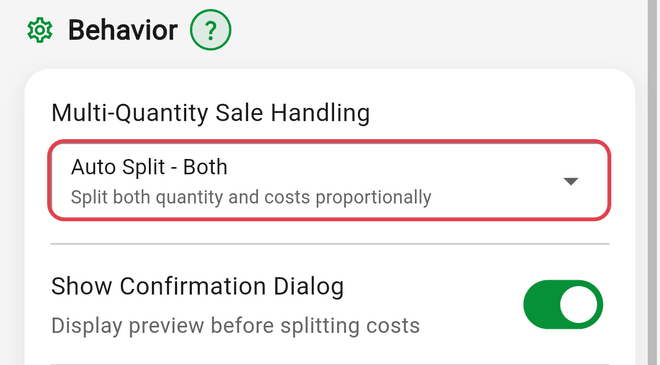
- Auto Split - Both -- "Split both quantity and costs proportionally." The sold units become a new Sold record carrying their share of the cost (cost ÷ total quantity × units sold). The original stays Listed with the remaining quantity and remaining cost.
- Auto Split - Quantity Only -- "Split quantity only, costs remain with original item." Same two records, but the cost isn't divided: both keep the cost as entered. This works best if you enter the cost of one piece rather than the total.
- Auto Split - Cost Only -- "Split costs proportionally, full quantity marked as sold." No second record. The whole item is marked Sold with its quantity unchanged and its cost reduced to the sold units' share.
- Manual (Do Nothing) -- "No automatic calculations - adjust costs manually." The whole item is marked Sold; quantity and cost are left for you to edit.
Show Confirmation Dialog ("Display preview before splitting costs") is on by default and greyed out in Manual mode.
Example: 10 items for $100
You buy 10 candles for $100, so each one cost you $10. You sell 1 for $25.
Auto Split - Both: enter the total you paid as the cost.
| Quantity | Cost | Profit | |
|---|---|---|---|
| You enter | 10 | $100 | |
| Sold record | 1 | $10 | $15 |
| Still in stock | 9 | $90 |
The $90 left in stock is what the other 9 candles cost you together. Sell 3 more and that sale gets $30, leaving 6 at $60.
Auto Split - Quantity Only: enter the cost of one candle.
| Quantity | Cost | Profit | |
|---|---|---|---|
| You enter | 10 | $10 | |
| Sold record | 1 | $10 | $15 |
| Still in stock | 9 | $10 |
The cost never changes, so your stock always shows what you paid per candle. Two things to watch:
- If you enter the $100 total in this mode, the sold candle carries all $100 and shows a $75 loss.
- If you sell more than 1 at once, the sold record still shows the cost of one. Sell 3 and change that record's cost to $30.
Which one should I pick? If you think in totals ("I paid $100 for the box"), use Both. If you think per piece ("they're $10 each") and usually sell one at a time, use Quantity Only.
Good to Know
- Quantity Sold only appears when the quantity is above 1, and takes at most two digits.
- Shipping and Adjustments are never pro-rated. Whatever you type on the sold form belongs to that sale alone, so the full amount goes on the Sold record.
- The new Sold record copies the item's title, description, photo, category, source, storage location, notes, and dates. If the item belongs to a bulk purchase, the Sold record stays linked to the same lot.
- eBay multi-quantity listings. A listing with stock left stays Active on eBay, so Flippd keeps the item Listed with eBay's remaining quantity. Each order that sells some units is recorded as its own Sold record with the order's price and date, using your Multi-Quantity Sale Handling setting for the cost (Both and Cost Only divide it; Quantity Only and Manual leave it). If you already recorded that sale by hand -- same title and quantity, sold within 14 days of the order -- sync adopts your record instead of creating a duplicate.
- Items whose quantity reached 0 without being marked Sold show up in Tools > Records to fix under "Quantity ran out."
- After a split, the Sold record and the remaining Listed item are separate records.