 Flippd Help
What is my Coach and how do I use it?
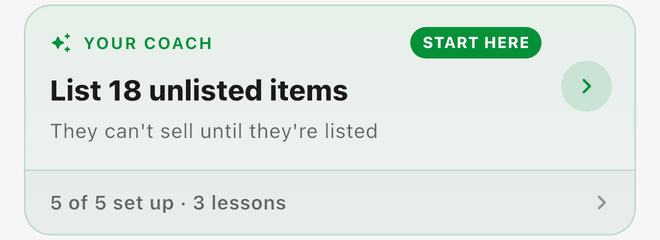
Your Coach reads your inventory, sales, expenses, and mileage every night, then tells you the one thing to fix first — with the real numbers behind it. Open it from the Your Coach card on your Home screen, which always leads with today's top action:
The verdict and the fix
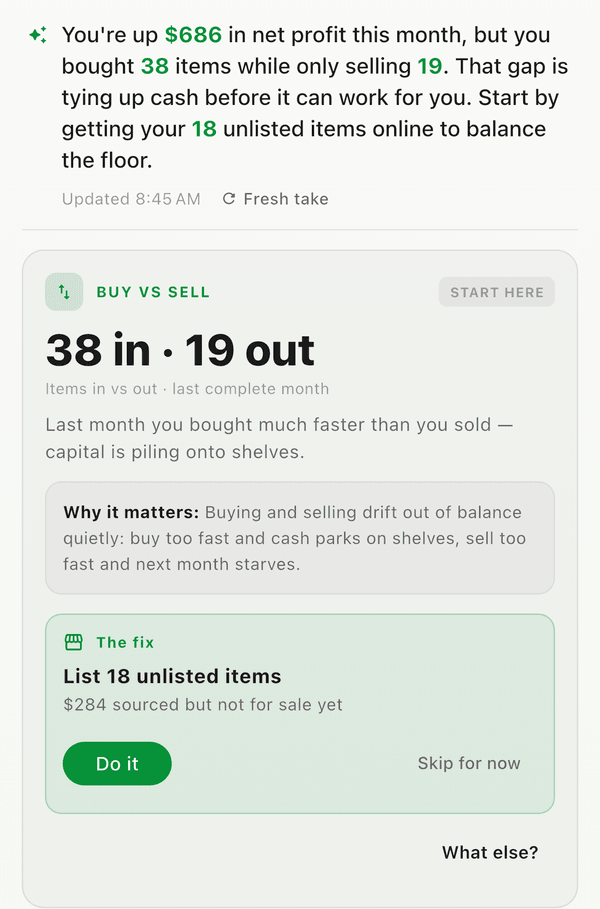
The Coach opens with a short daily read on your business, written from your own numbers, ending with the highest-value action to take. Below it, the lead insight shows the evidence — real dollars and counts — paired with The fix: a concrete action and a Do it button that takes you straight to the right screen. Tap Skip for now on anything that isn't relevant and the Coach moves on.
Insights: needs attention and working well
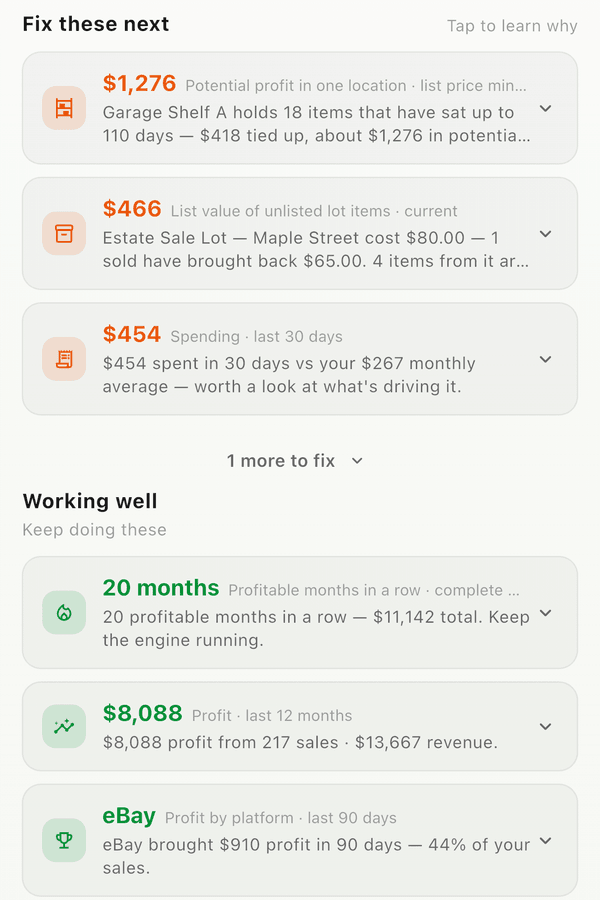
Every insight carries its numbers, the time window they cover, and why it matters. You'll see what needs attention (stale items, missing costs, fee creep) and what's working well — expand any row for the detail and a button to act on it.
Coach's class
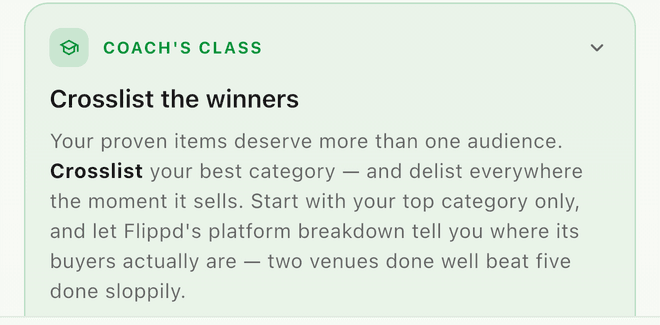
A short set of lessons on reselling and Flippd — pricing, sourcing, listing tactics — fresh on every visit.
Ask your coach anything
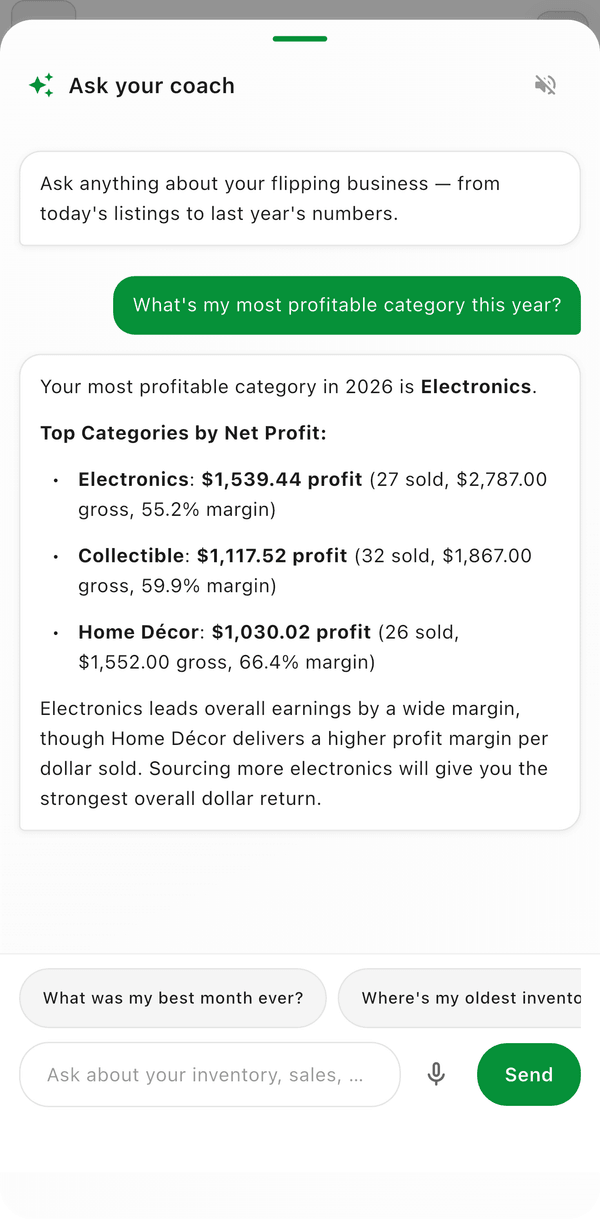
The chat bar at the bottom answers questions about your own inventory and numbers ("Where's my oldest inventory?", "What's my most profitable category?") — grounded in your real data, with links into the right screens.
Tune the Coach to your pace
The Coach follows your timeline, not ours. Tap the sliders icon at the top of the Your Coach screen to open Your pace (you'll also find it under Settings > Business Profile, and the Coach offers it as Tips coming too early? Set your own timeline after you skip a stale-inventory tip):
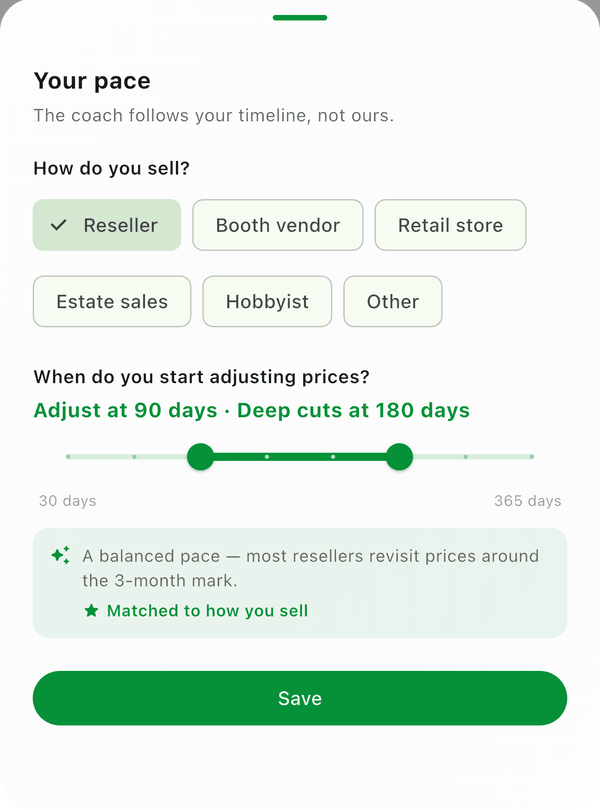
- How do you sell? -- Pick the style that fits: Reseller, Booth vendor, Retail store, Estate sales, Hobbyist, or Other. The Coach uses this to match its advice to how your business actually moves.
- When do you start adjusting prices? -- Drag the two handles to set when the Coach starts nudging you about stale inventory (Adjust at, anywhere from 30 to 180 days) and when it suggests bigger price drops (Deep cuts at, up to 365 days). A booth vendor might let items sit for months; a fast flipper might want a nudge at 30 days.
The preview line shows how your setting reads, and a star appears when your timing matches how sellers like you typically operate. Save, and every stale-inventory insight from then on uses your thresholds -- the "180-day rule" in your briefing becomes whatever you set here. (Needs app version 4.1.0 or newer.)
Just getting started?
Brand-new accounts get the full Coach experience while you set up. The Set up your coach checklist on Home walks you through it: Add your first item, Get your inventory in (sync, import, or bulk add), Tell your coach how you sell, Scan your first receipt, Log a sourcing trip, and Set a goal — each step gives it real data to read that night. Once you're around 10 items or make your first sale, it switches to reading your actual numbers.
Step-by-Step
- Open the Home tab
- Tap the Your Coach card
- Read the verdict, then tap Do it on the lead action — or What else? to rotate through today's insights
- Tap the chat bar at the bottom to ask your coach a question
- Tap the sliders icon up top to set how you sell and when stale-price nudges should start
Good to Know
- Numbers are recomputed every night — today's activity shows up in tomorrow's briefing. The "Numbers as of" line at the bottom shows exactly how fresh they are.
- The full daily plan — every insight, action, and fix — is free for every account.
- Chat is available to everyone: free accounts get 10 questions a day, subscribers get 100.
- The Coach needs app version 4.0.0 or newer (the web app at app.getflippd.com is always current).
- The Coach only reads your own data, and it never changes anything without you — every action is a suggestion you tap to carry out.