Flippd Help
How do I attach the items I bought to a sourcing trip?
Open a business trip in the Mileage tab and use the Items sourced on this trip card. Tap Attach, check the items you bought on that trip, and tap Save. The link shows on the item, on the trip, and in your Mileage Log PDF, so every deductible drive is backed by what you actually bought.
Step-by-Step
- Open the Mileage tab and tap a trip to open Trip Details
- Make sure the trip is a business trip. If it's still personal, tap Add to Business Mileage or choose a business type under Trip Type -- the items card only appears on business trips
- Scroll to Items sourced on this trip and tap Attach (tapping anywhere on the card works too)
- The Attach inventory sheet opens with the prompt Search or pick items bought on this trip. Items acquired on the same day as the trip are listed first, followed by your most recent inventory. Type in Search inventory to narrow the list
- Check each item you bought on that trip. Items already linked are pre-checked; uncheck one to remove its link
- Tap Save. You'll see Items linked to trip, and the card now lists the items with an Items cost total
Good to Know
- When a trip has no linked items but you added inventory that day, the card shows a shortcut like 3 items added this day — attach. Tap it to open the sheet with those items ready to check
- Same-day matching uses each item's Date Acquired, so set it to the day you bought the item and it'll be suggested on the right trip
- An item can be linked to one trip at a time. Linking it to a second trip moves it
- Open the linked item in your inventory and you'll see a Sourced on a business trip row with the trip date and miles
- Your Mileage Log PDF (under Reports > Tax Reports) adds the linked items to the purpose column -- for example Sourced: 3 items ($45.00) next to any notes you wrote -- which is the substantiation an auditor asks for
- The Items cost total is the combined cost of goods of the linked items, formatted in your business currency
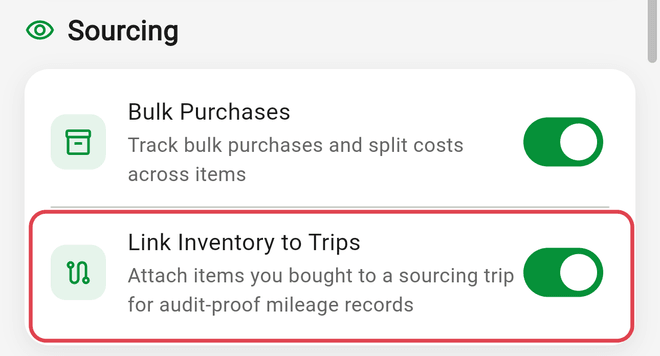
- The card is controlled by Link Inventory to Trips under Settings > Feature Visibility (in the Sourcing section). It's on by default; turn it off to hide the card and the row on item details
- Trips stay on your phone, so the attach card is only available in the mobile app