 Flippd Help
How do I generate a P&L statement for my accountant?
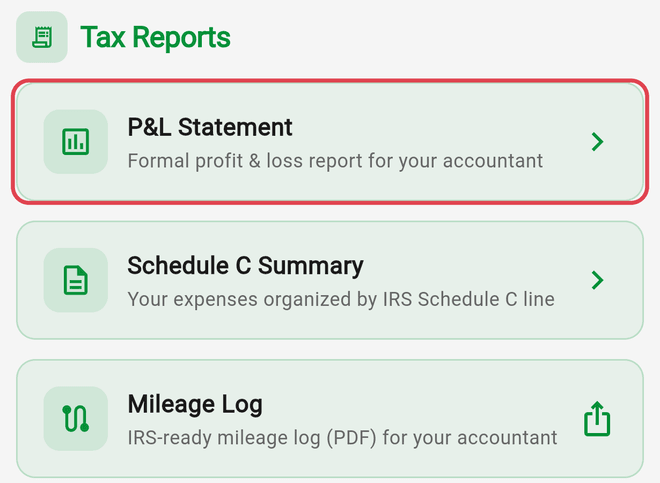
Open the Reports tab, pick the tax year at the top of the screen, scroll to Tax Reports, and tap P&L Statement. The statement lays out revenue, cost of goods sold, gross profit, operating expenses, and net income for the year, and the icons in the top corner export it as a PDF or CSV you can send straight to your accountant.
Step-by-Step
- Open the Reports tab
- Select the year you want at the top of the screen. The statement needs a single year -- if All is selected, the screen says No data available for this year
- On the Monthly or YTD tab, scroll down to Tax Reports
- Tap P&L Statement (subtitled Formal profit & loss report for your accountant)
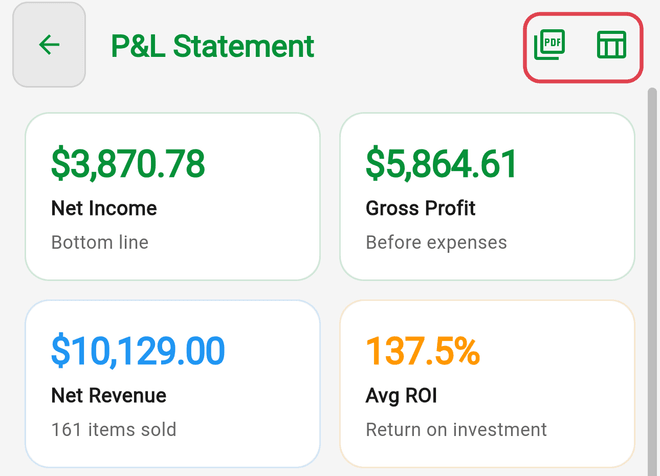
- Review the statement. Four tiles sit at the top: Net Income (Bottom line), Gross Profit (Before expenses), Net Revenue (with the number of items sold), and Avg ROI (Return on investment)
- Tap the PDF icon (Export PDF) or the table icon (Export CSV) in the top-right corner. On iPhone the PDF opens in the share sheet; on Android and the web it opens the print dialog, where you can save it as a file. The CSV opens your share options so you can send or save it
What the Statement Shows
- Revenue -- Gross Sales, Less: Adjustments, and Net Revenue
- Cost of Goods Sold -- Cost of Goods Purchased, Shipping Costs, Estimated Platform Fees, Sales Tax, and Total COGS
- Gross Profit -- net revenue minus total COGS
- Operating Expenses -- Business Expenses, Mileage Deduction, and Total Operating Expenses
- Net Income -- the bottom line, shown in green when positive and red when negative
- Supporting Details -- Number of Items Sold, Avg ROI, and Cost of Unsold Inventory, plus expandable Breakdown by Platform and Breakdown by Category sections listing each platform or category with its item count and revenue
Good to Know
- Files are named Flippd_PL_{year}.pdf and Flippd_PL_{year}.csv, and the PDF is stamped with a Generated date and time
- The PDF includes the platform and category breakdowns; the CSV contains the statement lines only
- Estimated Platform Fees is an estimate, as the label says -- check it against your marketplace statements before filing
- Cost of Unsold Inventory works differently by year: for the current year it's the cost of everything you currently hold unsold; for a past year it's the cost of items acquired that year that are still unsold
- Business Expenses is your total expenses for the year, and Mileage Deduction uses the mileage rate configured for your business
- The statement is built from the same yearly totals as the rest of Reports, so if a number looks off, fix the underlying sale, expense, or trip and the statement updates
- Amounts are formatted in your business country's currency
- The statement carries a disclaimer: it's for informational purposes only and isn't tax, legal, or financial advice -- verify the data and consult a qualified tax professional
- For a US Schedule C view of the same year, the Schedule C Summary sits next to the P&L under Tax Reports