 Flippd Help
Why is my data not syncing?
If your data isn't syncing between devices or seems stale, try these troubleshooting steps in order.
First: Is There a Specific Error Message on the Screen?
If a screen shows a written error message (for example "Failed to load..." followed by technical wording), stop here -- that's not a sync or connection problem, and reinstalling, signing out, or restarting your phone will not fix it. It's something we need to fix on our side, and we can often fix it within hours without you updating anything.
Message us the exact error text or a screenshot (tap the ? Help icon, then Live Chat). Once we've fixed it, tapping Retry or reopening the screen is all you'll need to do.
The steps below are for when data is stale, missing, or won't load without a specific error message.
Quick Fixes
- Check your internet connection -- Flippd needs an active connection to sync
- Close and reopen the app -- This restarts the sync process
- Check for app updates -- Make sure you have the latest version from the App Store or Google Play
- Pull down to refresh -- On inventory and report screens, swipe down to force a refresh
Still Not Working?
If the quick fixes don't help:
- Sign out and sign back in -- Go to Settings > Sign Out, then sign back in
- Restart your device -- Occasionally a device restart is needed
- Check your storage -- If your device is low on storage, the app may not function properly
- Reinstall the app -- Delete and reinstall Flippd (your data is saved in the cloud)
If you've gotten this far and it's still not working, don't keep repeating these steps -- message us with a screenshot and we'll dig in from our side.
Other Common Issues
My changes aren't saving (items, sales, expenses)
If you edit an item or record a sale and the change doesn't stick, it's almost always a connectivity problem on save, not a sync problem.
- Check your internet -- weak Wi-Fi or spotty cellular can fail the save silently. Try again on a stronger connection.
- Force-close and reopen the app -- this re-establishes the connection to our servers.
- Update to the latest version -- save behavior is regularly improved; older versions sometimes have edge-case bugs that have since been fixed.
- Sign out and sign back in -- this refreshes your authentication, which is required for every save.
If you've tried the above and saves are still failing, message us with your account email and which screen the save is failing on -- we may have rolled out a recent security update that needs tightening.
App is crashing, freezing, or stuck on the login screen
Crashes after an update are usually fixed by the next update -- check the App Store / Google Play for a newer version.
- Force-close the app completely and reopen
- Update to the latest version from the App Store or Google Play
- Restart your device
- Reinstall the app -- delete and reinstall; your data is safe in the cloud
- Check your device storage -- when storage is critically low, apps freeze on launch
If none of these work, send us your device model, OS version, and a description of what happens when you tap the app icon. App-wide outages get posted at the in-app status page, but most crash reports are device-specific.
Premium features look locked even though I paid
If you have an active subscription but Flippd shows premium features as locked:
- Open Settings in Flippd (gear icon, top right) and tap Subscription
- Tap Restore Purchases (this row only appears in the iOS and Android apps, not on the web)
- Wait a moment for Apple or Google to verify your subscription
- If still locked, sign out and sign back in
If that doesn't fix it, make sure you're signed into Flippd with the same email/Apple ID/Google account that purchased the subscription. The most common cause is signing in with a different account than the one that subscribed. See How do I manage, upgrade, or cancel my subscription? for the platform-specific steps.
Inventory or report counts don't add up
If the numbers on a screen seem wrong:
- Pull down to refresh -- on the inventory or reports screen, swipe down to force a refresh
- Check active filters -- year filter, status filter (Unlisted / Listed / Sold), category filter, or storage location filter all narrow what you see. Set everything to All to see your full data
- Recent sales/deletes take a moment -- some aggregations (Death Pile counts, year totals) recalculate on a short delay
- Scratched items count separately -- scratched items don't appear in the main inventory views; check the Scratch Pile
Photos won't upload, or uploaded photos are missing
Photo upload requires a stable internet connection at the moment of save:
- Check your connection -- timeouts are common on cellular in low-signal areas. Try again on Wi-Fi.
- Photo permission -- in your phone Settings, make sure Flippd has permission to access photos
- Try a smaller photo -- very large images can time out on slow networks. Take a new photo or use a smaller one.
- Wait and refresh -- uploaded photos may take a few seconds to appear; pull down on the item detail screen to refresh
- Force-close and retry -- if the upload is stuck, force-close the app and try again
All my photos disappeared, but my items are still there
If your item names, prices, and details load fine but every photo shows blank, the photos are almost certainly still safe -- something on your network is blocking image downloads. Photos are stored separately from the rest of your data, so a network filter can block one without the other.
- Turn off your VPN -- this is the most common cause. Some VPNs and privacy apps block or throttle the image servers Flippd uses. Disconnect the VPN, then pull down to refresh -- the photos usually reappear immediately.
- Check content filters or ad blockers -- DNS-based blockers, parental controls, or corporate/school Wi-Fi can do the same thing. Try switching from Wi-Fi to cellular (or vice versa).
- Refresh -- once you're off the VPN or filter, pull down on the inventory or item detail screen to reload.
If the photos come back when the VPN is off, nothing is wrong with your account -- add an exception for Flippd in your VPN app, or turn the VPN off while using Flippd. If they're still missing on a normal connection with no VPN, message us and we'll take a look.
App is running slowly
- Make sure you have a stable internet connection
- Close other apps running in the background
- Check for and install app updates
- Restart your device
Reports showing wrong numbers
- Verify that all items have accurate costs entered
- Check that sale prices and fees are correct
- Verify the date range of the report
- On the Reports screen, pull down to refresh the data
Your Data Is Tied to Your Email Address
Your Flippd account and all your data -- inventory, sales, expenses, goals, reports -- is linked to the unique email address you signed up with. This means:
- It's safe to delete and reinstall the app -- your data lives in the cloud, not on your device
- You can access the same data from any device -- iPhone, Android, or the web version at app.getflippd.com
- Switching devices doesn't affect your data -- sign in with the same email on your new device and everything is there
- Multiple devices work at the same time -- changes on one device sync automatically to all others
As long as you sign in with the same email address, you'll always see the same data.
I need to change my email address
Because your data is tied to your sign-in identity, changing your email isn't a self-serve setting -- it's a manual account migration we run for you. Email support@getflippd.com from the email currently on your account, tell us the new email you'd like to use, and we'll move everything over. There's no charge and your data stays intact.
If you signed in with Sign in with Apple using Hide My Email, see the Apple Hide My Email article -- the fix there is different.
Switching Between iPhone and Android
Your data and your subscription follow your account, not your device. If you're switching from iPhone to Android (or vice versa):
- Sign in on your new device with the same email address -- all your data will be there
- Your subscription is already active -- one subscription covers iOS, Android, and the web, so there is nothing to re-subscribe to. Don't buy a second subscription.
- Manage it where you bought it -- the Subscription screen on your new device shows Managed on App Store (or Google Play); it can only be changed or cancelled from the store you bought it in (App Store, Google Play, or the web billing portal), and it stays active on every platform in the meantime
Your data, inventory, sales, settings, and subscription are not affected by the switch.
Can't See Your Data?
If your data seems missing, it's usually one of these:
Year filter is set wrong
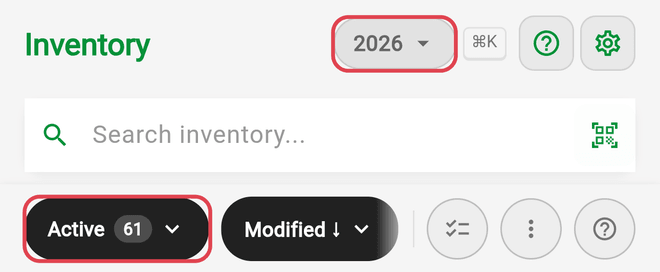
The inventory and reports are filtered by year using the dropdown at the top of the screen. If a different year is selected, your data won't appear. This is especially common in January. Select All from the year dropdown to see everything.
Signed in with a different email
Your data is tied to a specific email address. If you sign in with a different email, you'll see an empty account. Make sure you're using the same email you originally registered with.
Apple Hide My Email
If you signed in with Apple using Hide My Email, Apple created a unique private email address. This doesn't match your regular email. You need to sign in using the same method (Sign in with Apple) to access that account's data. See What is Apple's Hide My Email? for details.
Inventory status filter is active
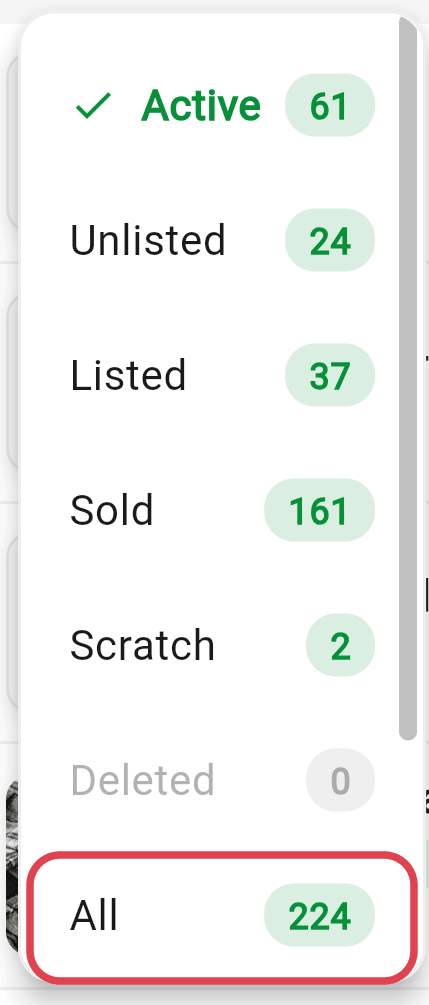
Inventory is organized by status (Unlisted, Listed, Sold). The list opens on Active (Unlisted and Listed), so sold items and items in other statuses won't appear. Tap the status filter at the top of the Inventory screen and choose All.
Good to Know
- Flippd syncs data automatically across all devices signed into the same account
- Sync happens in near real-time when you have a good internet connection
- If you recently made changes on another device, give it a moment to propagate
Need More Help?
- Tap the chat icon in the app to message our support team
- Email us at support@getflippd.com
- Our support team typically responds within 24 hours