Flippd Help
How does the item lifecycle work? (Unlisted, Listed, Sold)
Every inventory item in Flippd follows a lifecycle from acquisition to sale. Understanding this flow helps you track items accurately, keep your reports clean, and spot bottlenecks in your reselling process.
The Item Lifecycle
  Acquire Item
       |
       v
  +-----------+
  | UNLISTED  |  (Default status for new items)
  +-----------+
       |
       |  List on a platform
       v
  +-----------+
  |  LISTED   |  (Active on one or more selling platforms)
  +-----------+
       |
       |  Record a sale
       v
  +-----------+
  |   SOLD    |  (Sale complete, profit calculated)
  +-----------+
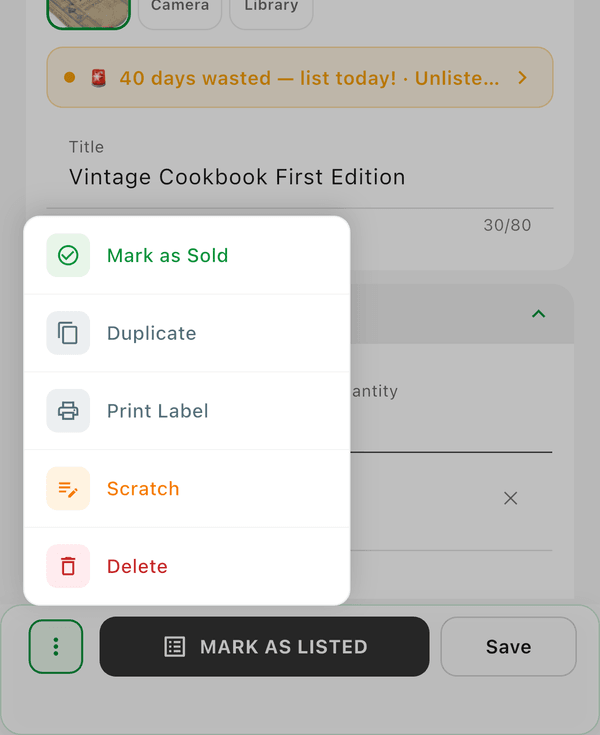
Items move forward through these three statuses as you list and sell them. The flow also works in reverse: the ⋮ (three dots) menu on the item detail screen offers Mark as Unlisted (take a Listed item off Listed and back to Unlisted) and Mark as Unsold (return a Sold item to Listed and remove the sale).
The Five Statuses
Unlisted
The starting point. You've acquired the item but haven't posted it for sale anywhere yet. This is where items live after you add them to inventory.
What gets set: Title, Cost of Good, Category, Source, Date Acquired, Photos
Listed
The item is actively posted on one or more selling platforms. Flippd tracks which platforms and when it was listed.
What gets set: Listing Platform(s), Date Listed, Listing Price
An item can be listed on multiple platforms simultaneously. Each platform listing is tracked independently with its own listing date and status.
Sold
The sale is complete. Flippd records the final sale details and calculates your profit automatically.
What gets set: Sold Platform, Date Sold, Gross Sale Price, Shipping Cost, Platform Fees
Profit is calculated automatically from your cost and sale details and flows into your reports. You can still edit a sold item's details if you need to correct something -- open the item, change any field, and tap Save.
Death Pile
Not a manual status -- this is an automatic flag. Unlisted items acquired 30 or more days ago (measured from Date Acquired) are flagged as Death Pile. These are items that need attention: list them, price them to move, or consider donating. Listed items are never in the Death Pile -- listed items that haven't sold show up under Aging instead.
The Death Pile counter on Home and the Death pile card under Tools both use this 30-day rule. (Death Pile challenges in Goals use their own 90-day window when scoring your death pile percentage.)
Scratch Pile
Items no longer for sale -- whether damaged, kept for personal use, lost, donated, or removed for any other reason. Scratching an item removes it from active inventory while preserving the cost record for reporting and tax purposes.
Date Rules
Dates enforce the natural order of the lifecycle:
| Date | Rules |
|---|---|
| Date Acquired | Can be up to 20 years in the past, up to today. This is when you bought or sourced the item. |
| Date Listed | Must be on or after Date Acquired, and on or before today. You can't list something before you own it. |
| Date Sold | Must be on or after Date Acquired, and on or before today. You can't sell something before you own it. |
These rules are enforced in the app -- the date pickers won't let you select invalid dates.
What You Can and Can't Change
| Status | What's Editable | What's Hidden |
|---|---|---|
| Unlisted | All item details, photos, dates | Listing platforms hidden, sold fields hidden |
| Listed | Item details, listing platforms, prices | Sold fields hidden |
| Sold | All item details, photos, dates, and sale fields (price, fees, shipping, date sold) | Nothing |
Items remain fully editable at every status. If you need to reverse a sale entirely (for a return or a sale recorded by mistake), use Mark as Unsold in the ⋮ menu instead -- that returns the item to Listed and removes the sale from your reports. To stop selling an item without deleting it, use Mark as Unlisted -- it goes back to Unlisted with all its details intact.
Multi-Platform Listings
If you cross-list an item yourself on several platforms, you can record all of those listings on the one Flippd item. Flippd doesn't create or post the listings for you -- you list on each marketplace as usual, then mark them in Flippd (see Does Flippd list my items on eBay, Whatnot, Poshmark, or Mercari?). Each platform listing tracks:
- Which platform (eBay, Poshmark, Mercari, etc.)
- When it was listed
- Listing URL (if available)
- Platform-specific status
When the item sells, you select which single platform the sale came from.
What the Inventory List Shows at Each Status
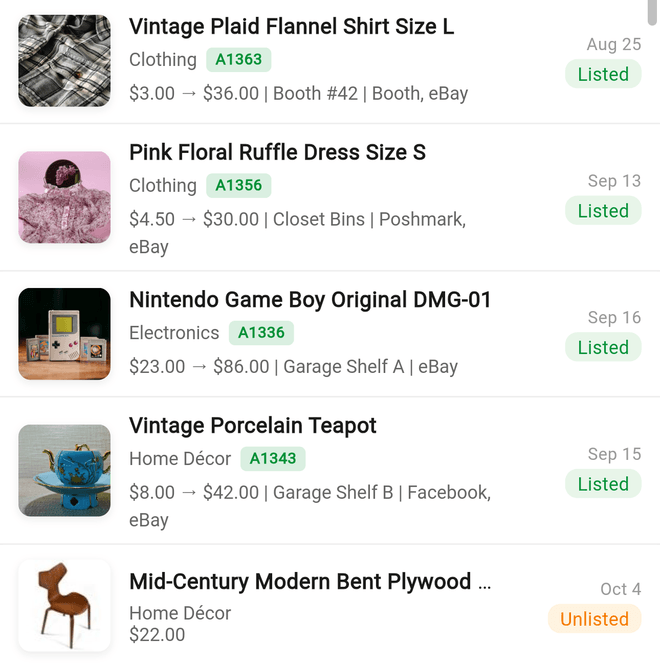
The price on each inventory list row follows the lifecycle too:
- Unlisted -- shows your Cost of Good (what you paid)
- Listed -- shows cost → list price (what you paid and what you're asking)
- Sold -- shows the sale price, plus profit and ROI
If you want your selling price visible in the list, list the item -- the row updates as the item moves through the lifecycle.
How This Affects Reports
- Unlisted items count toward your total inventory value (based on Cost of Good)
- Listed items show your potential revenue (based on listing prices)
- Sold items generate profit data that flows into daily, monthly, and YTD reports
- Death Pile items appear in the Death Pile counter, and slow Listed items appear in the Inventory Aging report
Good to Know
- You can skip the Listed status and go directly from Unlisted to Sold (for items you sell before formally listing)
- Bulk edit can change the status of multiple items at once
- Status filter chips on the Inventory screen show real-time counts for each status
- Tapping a status count on the Home dashboard filters your inventory to that status
- Deleted items aren't gone for good -- filter your inventory by Deleted and tap Restore to bring one back