 Flippd Help
What do my seller level and sell-through zone mean?
The Your Performance card on your Home dashboard shows two things: your sell-through rate, marked as Low, Optimal, or High, and your Seller level on a scale from Collecting to Selling to Pro. Sell-through is the share of everything you've tracked that has sold. Seller level scores how actively you list and sell, with unlisted items that have sat for 30+ days counting against you.
Step-by-Step
- Open the Home tab and find the Your Performance card
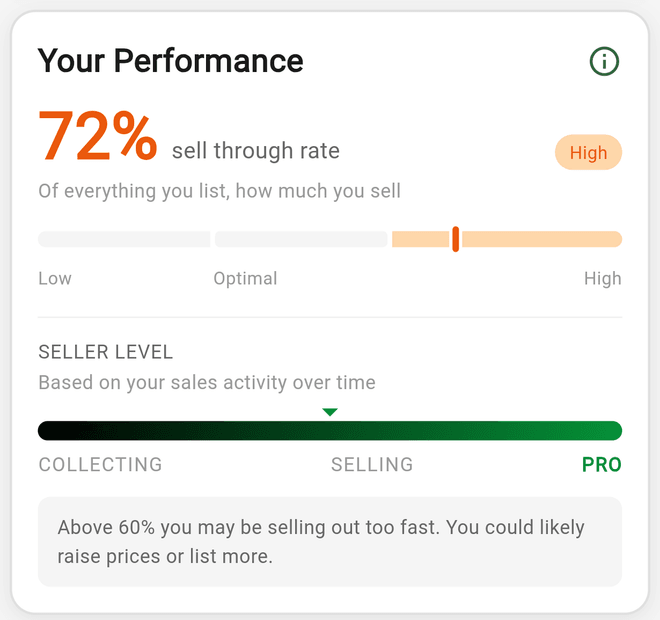
- The large percentage is your sell through rate -- Of everything you list, how much you sell. The chip next to it and the marker on the track show whether you're Low, Optimal, or High
- Below the divider, Seller level (Based on your sales activity over time) shows an arrow on a bar running from COLLECTING through SELLING to PRO. The highlighted label is your current level
- The tip at the bottom of the card tells you what to do next for your zone
- Tap the info icon in the card's corner for a short explanation of both numbers
How the Sell-Through Zone Works
Sell-through rate = items sold ÷ (items sold + items listed + items unlisted). If nothing has sold yet, it shows 0%.
The zone bands follow your Coach pace (the When do you start adjusting prices? setting):
- Standard pace (adjust before 150 days; most online resellers default to 90) -- below 50% is Low, 50–80% is Optimal, above 80% is High
- Patient pace (adjust at 150 days or more; booth, retail, and estate-sale sellers default to 180) -- below 30% is Low, 30–60% is Optimal, above 60% is High
The tips read accordingly: Low means items sit unsold, so try sharper pricing or better photos; Optimal means listings sell at a healthy pace without running out of stock; High means you may be selling out too fast and could likely raise prices or list more.
How Seller Level Works
Flippd scores you from 0 to 1 using your listed and sold counts -- the more you've sold relative to what's listed, the higher the score. Every Death Pile item (an Unlisted item acquired 30 or more days ago) trims the score slightly. On a patient Coach pace the penalty is halved. The bottom third of the scale is Collecting, the middle third is Selling, and the top third is Pro. To level up: list more items, list on multiple platforms, process unlisted inventory, and convert aging items into sales.
Good to Know
- Sold, Listed, and Unlisted counts follow the year selected at the top of the app; pick All to see your all-time rate. Death Pile items count regardless of year
- Changing your Coach pace changes the bands immediately -- a patient pace gives a lower optimal range because slower turnover is healthy for booth-style sellers. Adjust it from the sliders icon on the Your Coach screen or under Settings > Business Profile
- Death Pile items still affect your seller level even if the Death Pile tile is hidden on Home
- To hide the card, turn off Performance Card under Settings > Feature Visibility (in the Inventory Analysis section). It's on by default
- The card is a nudge, not a report -- use Reports for the numbers you'd hand to an accountant