 Flippd Help
How do I use Flippd for liquidation pallets, bin stores, and wholesale lots?
Record every pallet, bin haul, or wholesale lot as a bulk purchase, add the items to it with barcode scans or the supplier's manifest, and split the cost across them so each item has a real cost basis. The purchase then shows its total investment, profit, and ROI as pieces sell, which is the only number that tells you whether that supplier is worth buying from again.
Set Up
- Add your suppliers as Sources under Settings > Customize Data > Sources: the liquidation site, the bin store, the wholesaler. Filtering Inventory by Source later shows which one actually makes money.
- Create Storage Locations for your process: "Unprocessed", "Tested", "Ready to List", "Shelf A" through "Shelf F". Put a QR label on every shelf and tote.
- Set your platforms and fees for wherever you sell: eBay, Facebook, Mercari, Amazon, or "Local" for pickups.
Processing a Pallet
- Create the bulk purchase with the total cost, shipping, and supplier before you cut the wrap. The supplier picklist includes B-Stock, BULQ, Liquidation.com, and 888 Lots, and the purchase carries a status (ordered, shipped, received, processing, complete) with dates you can update as it moves.
- Have a manifest? Choose Import CSV Manifest from the purchase's Add Items chooser and upload the supplier's CSV (up to 5,000 rows). Item name is required; Value/MSRP, Quantity, and Condition are optional. Quantities expand into individual items, and the cost split switches to weighted by value.
- No manifest? Scan each item in. The same chooser offers Scan & Add Item (barcode quick-add reads the UPC and fills in the title and category) and Bulk Upload from Photos. No barcode? Photo and AI identify.
- Allocate the cost. Choose Equal Split for a bin haul, Weighted by List Price so the high-value pieces carry more of the cost, or Manual to pin a cost on one standout item.
- Grade as you test. Damaged or untestable pieces go to the Scratch Pile so they stop counting as sellable inventory.
- Shelve and label. Set the Storage Location and print a QR label so you can find it the moment it sells.
Selling
- eBay: connect eBay sync (a Pro feature) and the sales come in on their own.
- Everywhere else: tap Sold, enter the price, pick the platform.
- Multi-quantity items (a case of the same thing): record partial sales as units go out.
- Local pickups and buyers who want a receipt: turn on Invoices under Settings > Feature Visibility, then use Invoice Buyer on the sold item.
Judging the Buy
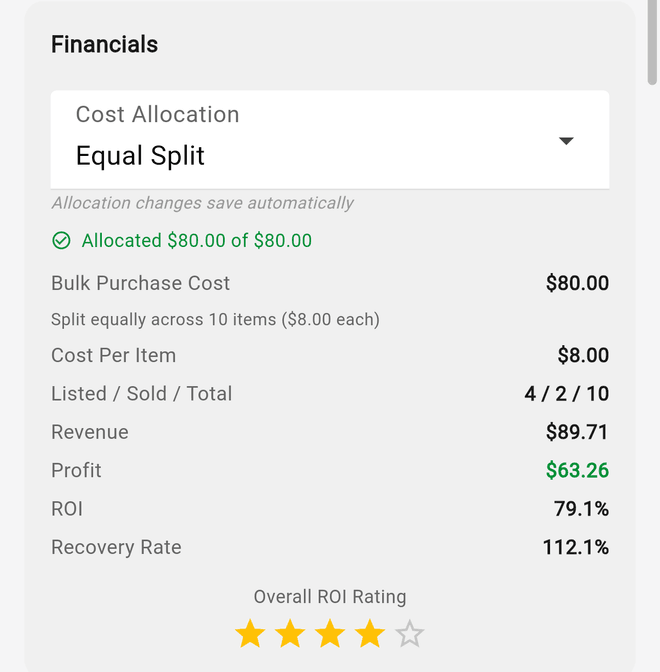
Open the bulk purchase under Tools > Bulk purchases to see cost, revenue so far, profit, ROI, and recovery for that pallet. Enter the Manifest Value and it also shows Recovery vs. Manifest. Compare suppliers by filtering Inventory by Source. Tools > Aging shows the leftovers that turn a great pallet into an average one.
Features You Can Skip
- Storefronts unless you open your own bin store or run a warehouse sale. If you do, one gives shoppers a scannable catalog of the floor (items linked to eBay won't appear in it).
- Mileage only if you drive to pick up pallets; if so, turn on Automatic trip tracking under Tools > Mileage.
Good to Know
- Pallet shipping, storage unit rent, and testing supplies go in Expenses; storage rent as a recurring one.
- The free plan's 20-item cap won't survive a single pallet. Plan on Pro from the start.
- Working with a partner? Invite them under Settings > Users so you both process into the same account (inviting requires Pro; they join on your subscription).
Related Articles
- How do I track bulk purchases and liquidation lots?
- What are all the ways to add inventory to Flippd?
- What is the Scratch Pile and how do I scratch an item?
- How do I set up and use storage locations?
- How do I create and send an invoice to a buyer?
- How do I use the Inventory Aging report to find slow-moving items?