 Flippd Help
How do I use Flippd for my consignment shop or small retail store?
Track each consignor or supplier as a Source, organize the shop floor and back room with Storage Locations, invite staff under Settings > Users (a Pro feature) so everyone works in one inventory, and print QR labels for every item. Add a Storefront so shoppers can browse the floor from their phones, and connect eBay sync if you also sell online.
Set Up the Shop
- Add each consignor or supplier as a Source. Go to Settings > Customize Data > Sources and add one source per consignor (or per wholesale supplier). Every item carries its source, so you can filter and export exactly what belongs to whom.
- Map the store with Storage Locations. Go to Tools > Storage locations and create "Sales Floor" with sublocations like "Front Window", "Rack 3", or "Jewelry Case", plus "Back Room" and "Overflow". Print QR codes for racks and shelves.
- Add your store as a selling platform (for example "In-Store") with your card processing fee, so in-store profit stays separate from online sales.
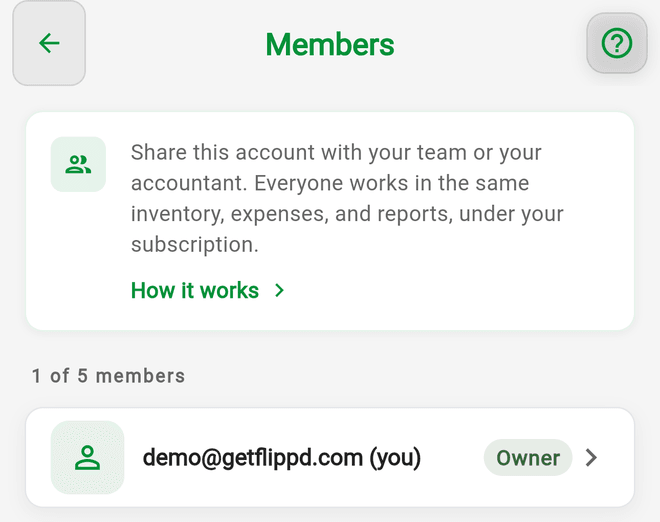
- Invite your staff. Under Settings > Users, add employees as Members so they can add items and record sales, and your accountant as a Viewer who can see reports and exports but change nothing. An account holds up to 5 people; inviting requires Pro, and members join on your subscription.
- Turn on SKU auto-generation under Settings > SKU Settings if you tag with your own numbers. For branded tags, upload your logo under Settings > Business Profile, then add a Logo element to a template under Tools > Labels > Manage Templates.
Intake
- Tap Add, photograph the item, and enter the consignor as Source, the agreed split or cost as the cost, and the asking price.
- Print the label straight from the item and tag it.
- Set its Storage Location to where it's displayed and its status to Listed.
Receiving a whole lot from one consignor? Record it as a bulk purchase so the cost splits across the pieces.
Selling
- Record each sale on the item with the price and the In-Store platform. Sales stay tied to the consignor's source, so payouts are an export away.
- Consignor statements: export the workbook from Tools > Import / export (set Statuses to Sold in the advanced filters), then filter the Source column in Excel to one consignor. The Source Performance chart in Reports shows per-consignor revenue and profit without exporting.
- Buyers who want paperwork: turn on Invoices under Settings > Feature Visibility; sold items then show Invoice Buyer.
- Storefront: publish one with the "Other in-person venue" type and map your floor locations to sections. Put the QR at the door so browsers can see what's in the case without asking. Shoppers see each published item's photos, price, SKU or Stock Number, description, and notes, so keep consignor splits and payout terms out of Notes. Items linked to eBay never appear in a Storefront.
Online Channel
If part of the stock goes to eBay, connect it under Settings > Integrations (a Pro feature; only the account owner can connect). Sync is one-way: eBay overwrites those items' title, price, photos, status, quantity, and SKU on every sync, but never your cost, source, or location, and Flippd never edits your eBay listings. Keep the item's Source as the consignor so the payout math still works.
Good to Know
- Flippd complements a POS. It tracks cost, consignor, location, and profit per item, which most POS systems don't. It does not process payments.
- Rent, utilities, and card fees go in Expenses as recurring entries so your tax reports are complete.
- Tools > Aging is your markdown list: anything listed past your pace shows up there.
- Running two shops? Keep them as separate accounts and switch between them from Settings.
Related Articles
- How do I invite my team or accountant to my Flippd account?
- How do I customize my selling platforms, categories, and sources?
- How do I create and print labels for my items?
- What are Storefronts and how do I use them?
- How do I create and send an invoice to a buyer?
- How do I export my inventory and sales data?
- How do I connect my eBay account to Flippd?